jig.document
The document jig type is used to display documents connected to your solution. The display of the document is provided in the following formats:
PDF file
HTML page - set up using:
A URL (website link)
HTML

Configuration options
Some properties are common to all jig types, see Common jig type properties for a list and their configuration options.
title
Provide the name of the screen. If you do not want to show a title in a jig use title: ' ' or add an expression.
source
Select from PDF or HTML content.
description
The general description of the document.
badge
Enhance your widget with customizable badges, for instance, show the number of documents. Add the badge property to the jig YAML with an expression.
icon
The icon will be displayed on the widget of this jig. Start typing the name of the icon to invoke the available list in IntelliSense. See Jigx icons for information on working with icons.
placeholders
Create a placeholder to show when there is no data to use yet. See tips and tricks -use a placeholder for a placeholder example.
Examples and code snippets
The code below is an extract from the full jigx-samples solution. The code snippets describe the component discussed in this section. For the solution to function in the Jigx app download the full jigx-samples project from :Link[GitHub]{href="https://github.com/jigx-com/jigx-samples/tree/main/quickstart/jigx-samples" newTab="true" hasDisabledNofollow="false"}, and follow the instructions in Setting up your solution.
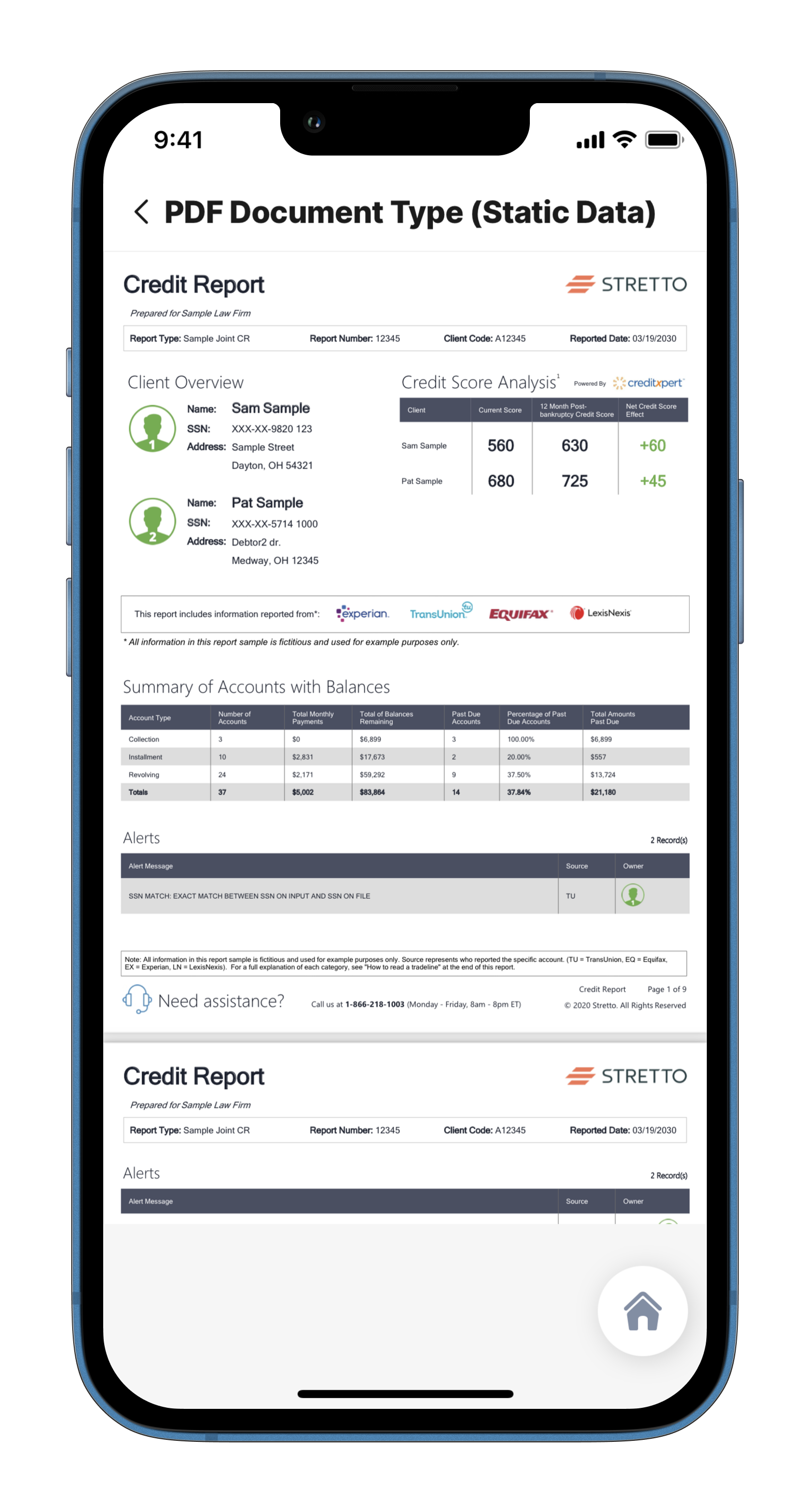
PDF Document Example

type: jig.document
title: PDF Document Type (Dynamic Data)
description: Example of PDF Financial Report
icon: document
badge: 1
placeholders:
- when: [email protected]
title: No data to display
source:
documentType: PDF
uri: [email protected][type='PDF'].urldatasources:
documents-dynamic:
type: datasource.sqlite
options:
provider: DATA_PROVIDER_DYNAMIC
entities:
- entity: default/documents
query: |
SELECT
id,
'$.name',
'$.description',
'$.type',
'$.url'
FROM [default/documents] databaseId: default
tables:
documents: nullname: jig-doc-pdf
title: jig-doc-examples
category: business
tabs:
home:
jigId: document-pdf-dd
icon: home-apps-logoHTML Document Example (URL)

type: jig.document
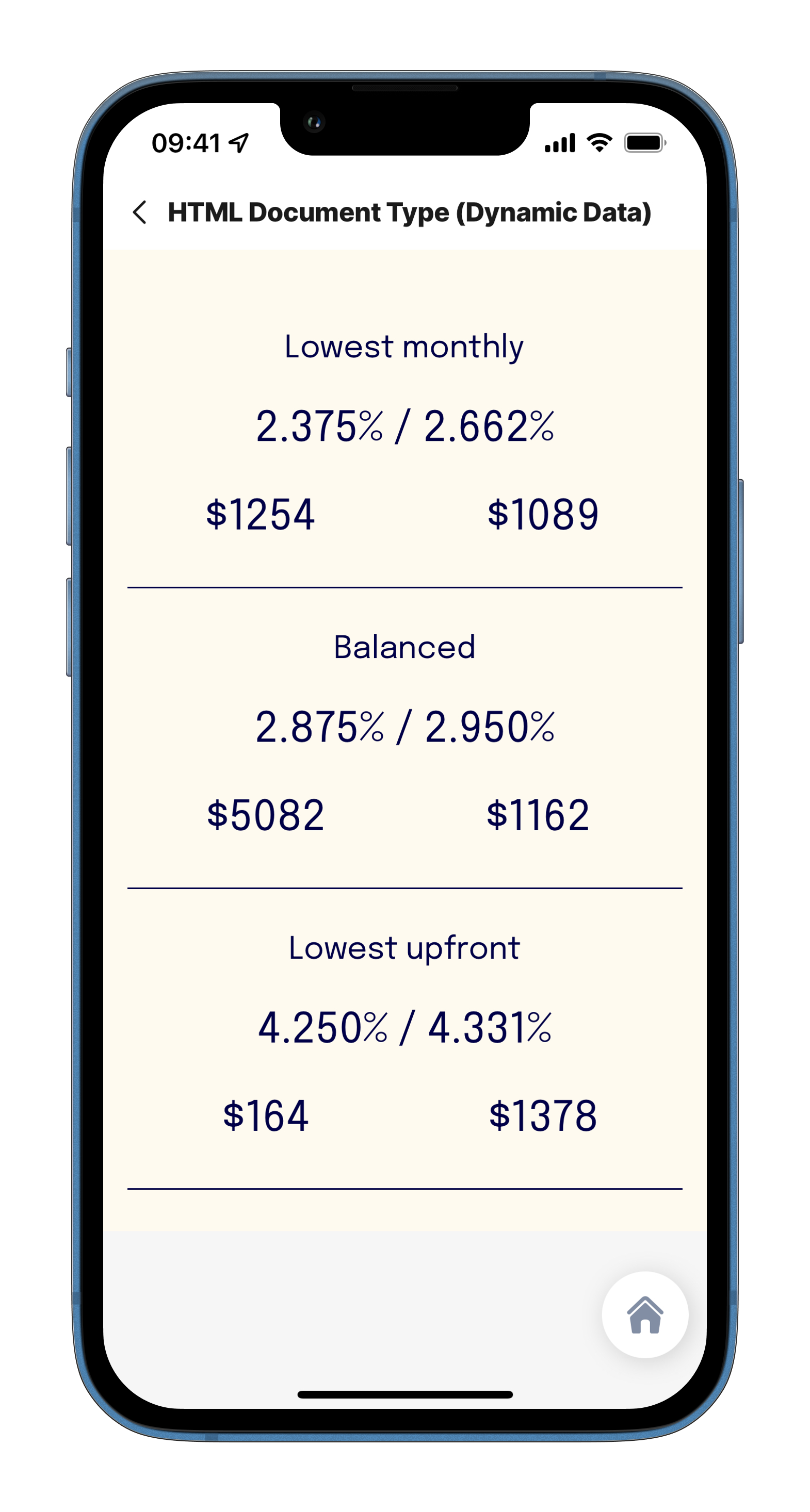
title: HTML Document Type (Dynamic Data)
description: Example of Business Offers via HTML url
icon: document
badge: 1
placeholders:
- when: [email protected]
title: No data to display
source:
documentType: HTML
uri: [email protected][type='HTML'].urldatasources:
document-dynamic:
type: datasource.sqlite
options:
provider: DATA_PROVIDER_DYNAMIC
entities:
- entity: default/documents
query: |
SELECT
id,
'$.name',
'$.description',
'$.type',
'$.url'
FROM [default/documents] databaseId: default
tables:
documents: nullname: jig-doc-html
title: jig-doc-examples
category: business
tabs:
home:
jigId: document-html-dd
icon: home-apps-logoHTML Document Example (Content)
You can also use this jig type to pass raw HTML into the webview (without linked CSS, JS etc.).
<meta name="viewport" content="width=device-width, initial-scale=1">
In this example a jig.document is used to display raw HTML content.
Examples: See the full code sample in GitHub.
title: HTML Document Type (Content)
type: jig.document
source:
documentType: HTML
content: |
<html>
<head>
<meta name="viewport" content="width=device-width, initial-scale=1">
</head>
<body style="margin: 0;text-align: center;">
<img src="https://www.jigx.com/wp-content/uploads/2023/05/MSGraph01.png" alt="Jigx website screenshot"
style="max-width: 100vw; height: 100vh; ">
</body>
</html>name: jig-html-content
title: jig-html-content
category: business
tabs:
home:
jigId: document-html-content
icon: home-apps-logoHTML Document Example (Content with Message Listener)

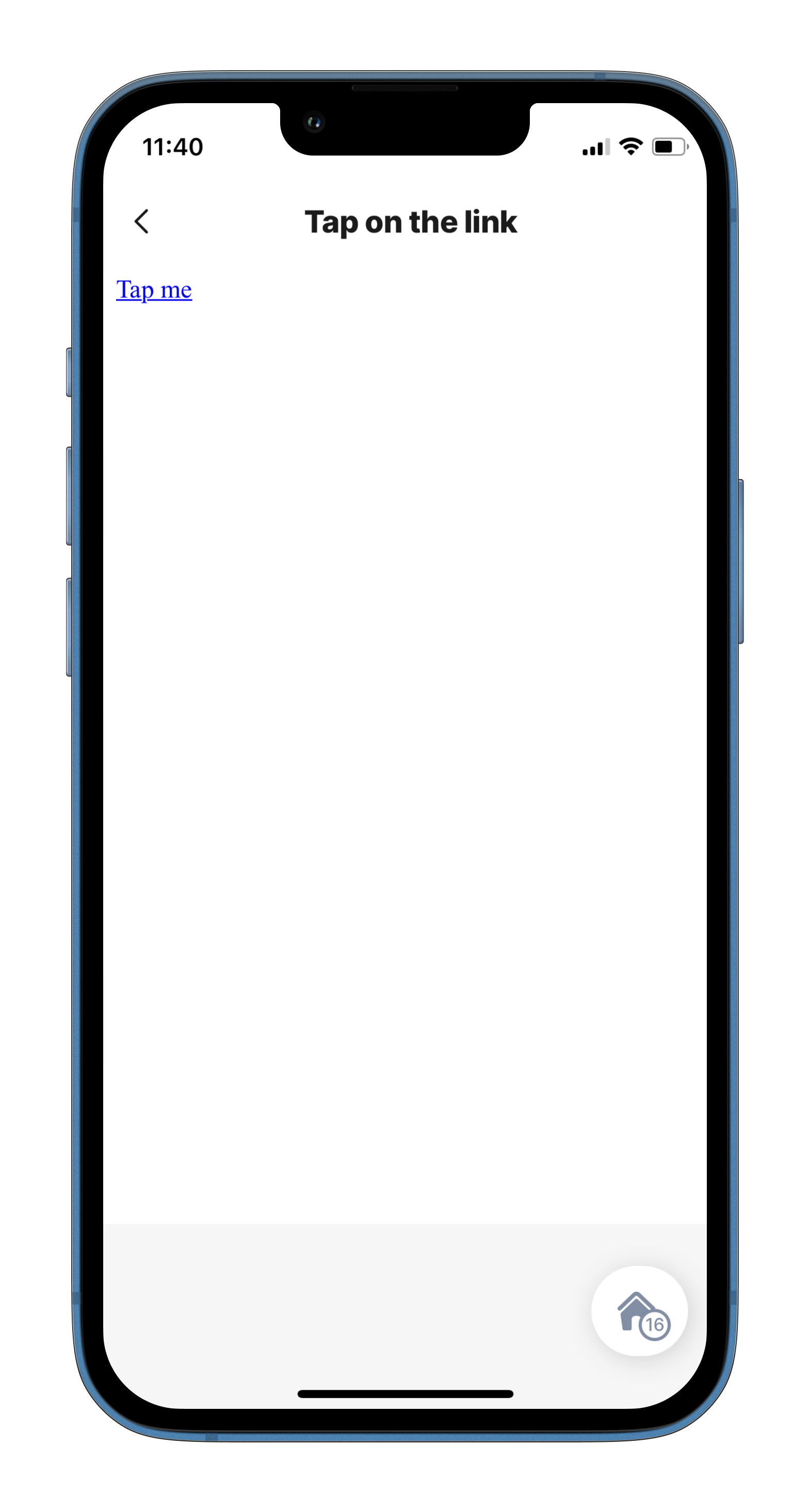
In this example a jig.document is used to display raw HTML content. A message listener was added via JavaScript called linkTapped(). The HMTL can pass a value into the message listener and the message then gets passed on as JSON to the Jigx App . The JSON object is then available in the state expression using @ctx.jig.state.data. All properties of your object can be accessed using @ctx.jig.state.data.[yourproperty].
When the jig gets focus, the state is reset in this example.
title: "=$boolean(@ctx.jig.state.data) ? @ctx.jig.state.data.message : 'Tap on the link'"
type: jig.document
onFocus:
type: action.reset-state
options:
state: [email protected]
source:
documentType: HTML
isTrackingTransparencyRequired: false
content: |
<html>
<head>
<meta name="viewport" content="width=device-width, initial-scale=1">
<script language="javascript">
function linkTapped(val)
{
window.ReactNativeWebView.postMessage(JSON.stringify({message : val}));
}
</script>
</head>
<body>
<a href="javascript:linkTapped('Hello World')">Tap me</a>
</body>
</html>name: jig-html-content-listener
title: jig-html-listener
category: business
tabs:
home:
jigId: document-htmlcontent-listener
icon: home-apps-logoSee Also
Last updated
Was this helpful?