> For the complete documentation index, see [llms.txt](https://docs.jigx.com/llms.txt). Markdown versions of documentation pages are available by appending `.md` to page URLs; this page is available as [Markdown](https://docs.jigx.com/building-apps-with-jigx/additional-functionality/localization.md).
# Localization
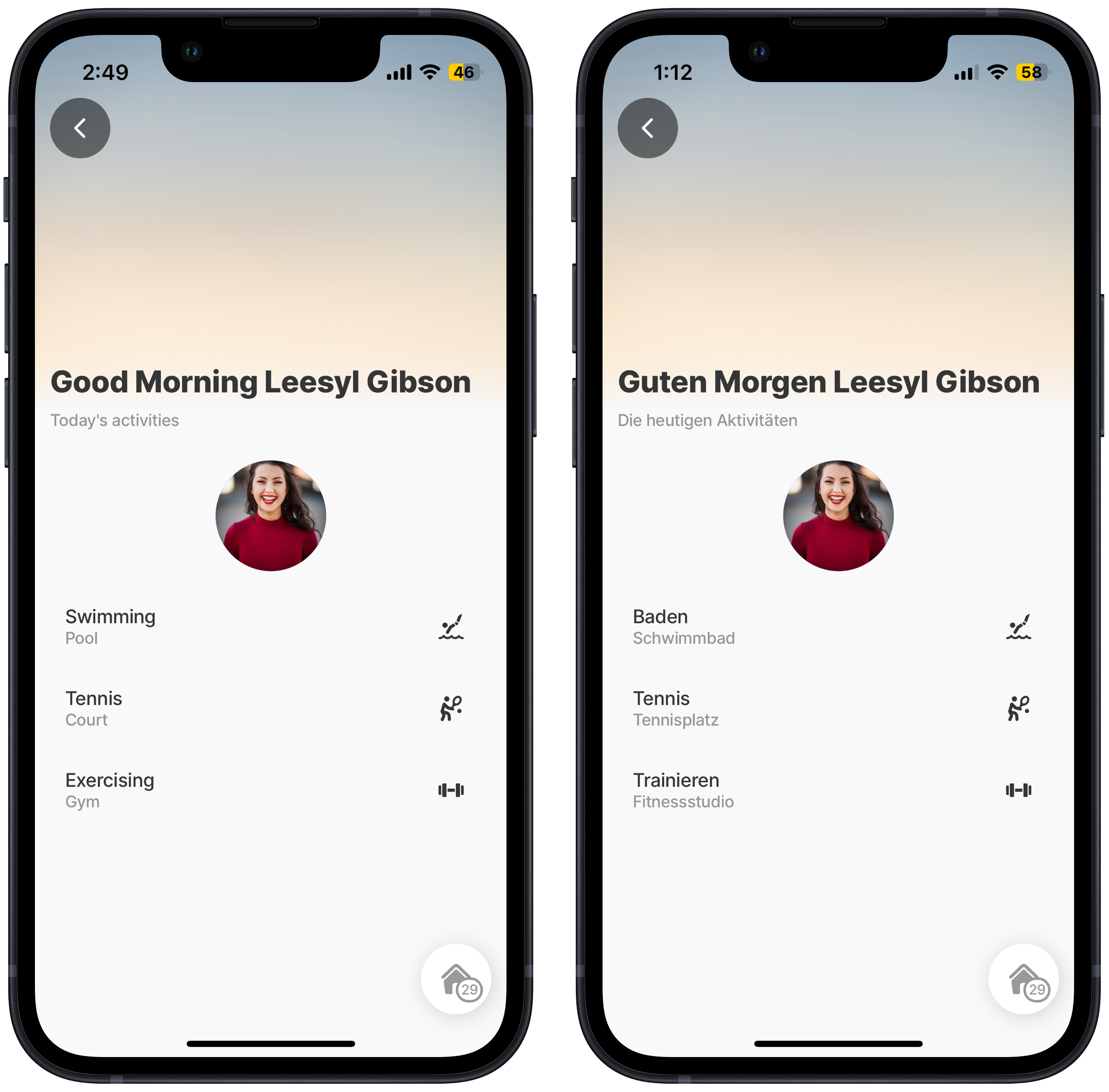
Jigx mobile app supports multiple languages, significantly enhancing its market presence, user engagement, and overall success by appealing to a broader and more diverse audience. The real power of the Jigx localization functionality lies in using a single jig that can have multiple translations associated with the jig, the app respects the language setting of the device and renders the jigin that language if the corresponding language file is found or defaults to English.
One jig in English & German
## How it works
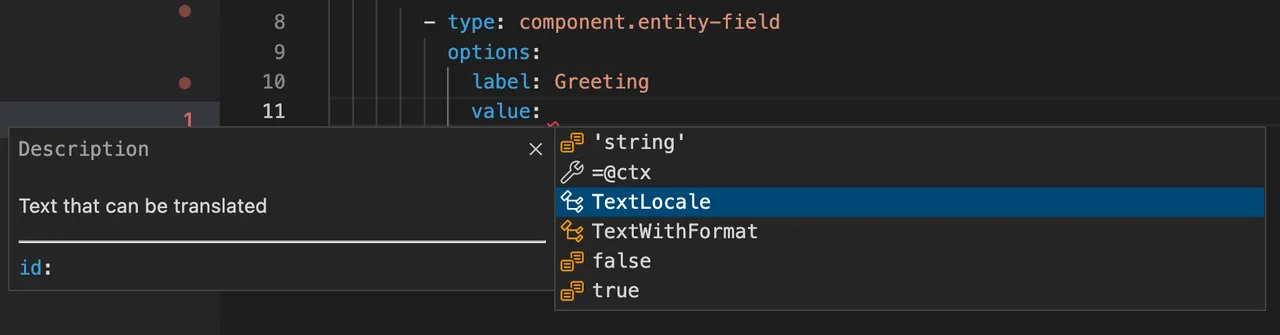
In Jigx Builder every property that accepts string-based values, e.g., field labels, can be localized. Wherever `TextLocale` pops up in IntelliSense, the value can be localized. The localization to the `TextLocal` is specified in the Translation folder in a file for each language.
{% hint style="info" %}
Only one translation file per language is used, For example, de.jigx for German will hold all the `TextLocal` `id` values for all jigs in the solution that must be localized.
{% endhint %}
IntelliSense for localized values
{% columns %}
{% column %}
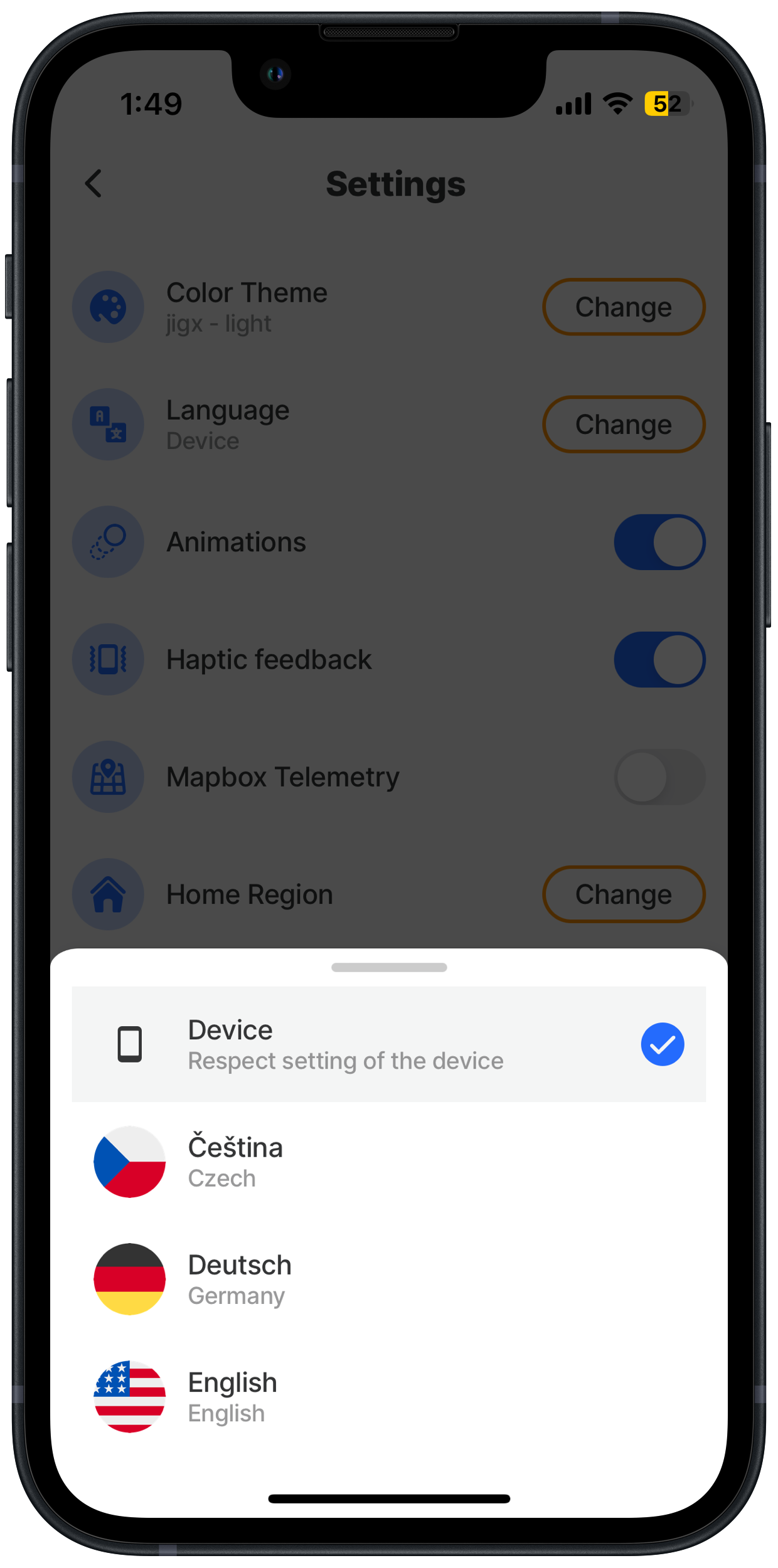
In the Jigx App under **Profile>Settings>Language** check that the setting **Device** is selected. This respects the settings of the device and if a matching language translation file is present in the solution the jig will show in that language.
{% endcolumn %}
{% column %}
Language Settings
{% endcolumn %}
{% endcolumns %}
## Configuration
Configuring `TextLocale` is simple, and the translation can be:
1. **Static** - Add localization to a jig using a *unique identifier* with translated text
2. **Dynamic** - Add localization to a jig using *ICU Message definitions*
{% hint style="info" %}
Adding dynamic values in localized jigs use **ICU message** definitions. Try it in the [Online ICU Message Editor](https://format-message.github.io/icu-message-format-for-translators/editor.html) or see the [ICU format messaging](https://unicode-org.github.io/icu/userguide/format_parse/messages/) documentation.
{% endhint %}
### Static values - In the jig
1. Invoke IntelliSense next to the property you want to translate.
2. Select `TextLocale`
3. Provide an `id:` for the value to be translated.
4. *Optional:* add the `defaultMessage:` property with a value. If there is no translation found for the active device's language, it will either fallback to the specified `defaultMessage` or if one is not specified, to English.
{% code title="jig.jigx" %}
```yaml
children:
- type: component.text-field
instanceId: first_name
options:
label:
# add the TextLocale id that will be used in the translation jigx file
id: first_name
# Specify a fallback if the lanaguage is not founnd on the device
defaultMessage: First Name
```
{% endcode %}
### Static values - In the translation file
Once the unique id has been set for the `TextLocale`, the file containing the translation needs to be configured:
1. In Jigx Builder under the **translations** folder, create a new file. The file's name must be the [ISO 6391-1 codes](https://en.wikipedia.org/wiki/List_of_ISO_639-1_codes), for example, de.jigx for German, or fr.jigx for French.
2. For multiple languages create a separate file per language required.
3. Add the unique identifiers (`id`) values specified in the jig, with the corresponding translated text in the new file.
4. If you using multiple languages, simply use the same unique identifiers (`id`) values in each language file and for **static** values ensure the translated text corresponds.
{% tabs %}
{% tab title="de.jigx" %}
```yaml
# add the id specified in the jig and the static German translated value
first_name: Vorname
```
{% endtab %}
{% tab title="fr.jigx" %}
```yaml
# add the id specified in the jig and the static French translated value
first_name: Vorname
```
{% endtab %}
{% tab title="cs.jigx" %}
```yaml
# add the id specified in the jig and the static Czech translated value
first_name: Jméno
```
{% endtab %}
{% endtabs %}
### Dynamic values- In the jig
To set the `TextLocal` property dynamically
1. Invoke IntelliSense next to the property you want to translate.
2. Select `TextLocale`
3. Provide an `id:` and `values` properties. The values property requires context variables that will be used in the translation file.
4. *Optional*: add the `defaultMessage:` property with a value. If there is no translation found for the active device's language, it will either fallback to the specified `defaultMessage` or if one is not specified, to English.
{% code title=" jig.jigx" %}
```yaml
title:
id: jig-name
defaultMessage: Example (Fallback)
type: jig.default
children:
- type: component.entity
options:
children:
- type: component.entity-field
options:
label: Localized Text (Static)
value:
id: example-static
defaultMessage: Good afternoon (Fallback)
- type: component.entity-field
options:
label: Localized Text (Expression)
value:
id: example-dynamic
values:
name: =@ctx.user.displayName
time: =$fromMillis($millis(),'[P]')
```
{% endcode %}
### Dynamic values - In the translation file
Once the unique id has been set for the `TextLocale`, and the `values` configured the file containing the translation needs to be configured:
1. For multiple languages create a separate file per language required.
2. Add the unique identifiers (`id`) values specified in the jig, with the corresponding translated text in the new file.
3. Add the context variable for the values specified in the jig. This can be values you add to the `TextLocale: value` option and [ICU Message](https://format-message.github.io/icu-message-format-for-translators/index.html) definitions.
4. If you using multiple languages, simply use the same unique identifiers (`id`) values in each language file and for **static** values ensure the translated text corresponds.
{% tabs %}
{% tab title="localized-jig.jigx" %}
```yaml
title:
id: greeting
values:
name: =@ctx.user.displayName
time: =$fromMillis($millis(),'[P]')
```
{% endtab %}
{% tab title="de.jigx" %}
{% code overflow="wrap" %}
```yaml
greeting: "{time, select, am {Guten Morgen} pm {Guten Nachmittag} other {Hallo}} {name}"
```
{% endcode %}
{% endtab %}
{% endtabs %}
## Considerations for dynamic values
### Dealing with spaces
* The select clause is case-sensitive, avoid using spaces.
{% code overflow="wrap" %}
```yaml
# Working, notice there no spaces in the variable name
genus: '{title, select, hornet {Hornet (Vespa crabo)} house_wasp {House wasp} leafcutter_bee {Leafcutter bee}}'
# Not working due to spaces in the variable
genus: '{title, select, hornet {Hornet (Vespa crabo)} House wasp {House wasp} Leafcutter Bee {Leafcutter bee}}'
```
{% endcode %}
* If your datasource has spaces you can add an entry for the translation variable that removes the space. In the code example below an entry `translation_string` has been added to facilitate spaces.
{% tabs %}
{% tab title="datasource" %}
```json
[
{
"rid": "4a181550-2166-42d3-9194-a0dc8b432073",
"content": {
"name": "Resettlement",
"color": "color2",
"translation_string": "resettlement"
}
},
{
"rid": "901e337e-a190-437c-b611-4d1382f40c5c",
"content": {
"name": "Exceptional destruction",
"color": "color4",
"translation_string": "exceptional_destruction"
}
},
{
"rid": "c20a31f7-5be1-4cbb-9b4b-7b70382c9929",
"content": {
"name": "Consultation",
"color": "color9",
"translation_string": "consultation"
}
},
{
"rid": "cfacbb0d-3982-4884-8d6c-f7cddbe7e17f",
"content": {
"name": "Local change",
"color": "color3",
"translation_string": "local_change"
}
}
]
```
{% endtab %}
{% tab title="jig-component" %}
```yaml
value:
id: services_dropdown
values:
translation_string: =@ctx.inputs.inspection.translation_string
```
{% endtab %}
{% tab title="translation-file" %}
{% code overflow="wrap" %}
```yaml
services_dropdown: "{translation_string, select, resettlement {Resettlement} exceptional_destruction {Exceptional destruction} consultation {Consultation} local_change {Local change} other {Unknown}}"
```
{% endcode %}
{% endtab %}
{% endtabs %}
* Be consistent when key names, for example, if you use underscore (\_) then ensure all spaces are replaced with underscores.
* Create a fallback for the variable. The fallback in the code example below is the `other` case. This means if the `title` variable is not `cash_payment`, the string `Payment placeholder` will be displayed.
{% code title=" fallback" overflow="wrap" %}
```yaml
cash_payment_title: '{title, select, cash_payment {Amount was paid in cash} other {Payment placeholder}}’
```
{% endcode %}
### Using conditions
* When an expression or value of a property is configured with a condition, the condition needs to be defined in the translation file, see the code example below.
{% tabs %}
{% tab title="list.jigx" %}
```yaml
title: Translate
type: jig.default
datasources:
inspection-current:
type: datasource.static
options:
data:
- id: 1
name: John
payment_status: Pending
- id: 2
name: Hannah
payment_status: Paid
- id: 3
name: Sarah
payment_status: Pending
- id: 4
name: Hannah
payment_status: Paid
children:
- type: component.list
options:
data: =@ctx.datasources.inspection-current
maximumItemsToRender: 8
item:
type: component.list-item
options:
title: =@ctx.current.item.name
description: =@ctx.current.item.payment_status = 'Pending' ? 'Pending payment':'Paid'
subtitle:
# Add an id to be used in the translation file.
id: payment_status
# The default message is a fallback to English if the language is
# not found.
defaultMessage: =@ctx.current.item.payment_status = 'Pending' ? 'Pending payment':'Paid'
# Add values to be used in the condition in the translation file.
values:
status: =@ctx.current.item.payment_status
```
{% endtab %}
{% tab title="de.jigx (translation-file)" %}
{% code overflow="wrap" %}
```yaml
# Add file under the translations folder with the id followed by the condition,
# that uses the value in the ICU message definition.
payment_status: "{status, select, Pending {ausstehende Zahlung} other {bezahlt}}"
```
{% endcode %}
{% endtab %}
{% endtabs %}
## Examples and code snippets
The following examples with code snippets are provided:
* [Localization (Translation)](https://docs.jigx.com/examples/readme/localization-_translation_)
---
# Agent Instructions
This documentation is published with GitBook. GitBook is the documentation platform designed so that both humans and AI agents can read, navigate, and reason over technical content effectively. Learn more at gitbook.com.
## Querying This Documentation
If you need additional information that is not directly available in this page, you can query the documentation by asking a question.
Perform an HTTP GET request on the following URL with the `ask` and `goal` query parameters:
```
GET https://docs.jigx.com/building-apps-with-jigx/additional-functionality/localization.md?ask=&goal=
```
`ask` is the immediate question: it should be specific, self-contained, and written in natural language.
`goal` is what the user is ultimately trying to achieve, the reason they need the answer. Sharing it helps GitBook give you a better, more relevant answer. A goal is most helpful when it describes the outcome the user wants rather than restating the question. For example, with `ask=how do I create an API token`, a goal like `automate deployments from our CI pipeline` lets GitBook tailor the answer to that use case.
The response will contain a direct answer to the question and relevant excerpts and sources from the documentation.
Use this mechanism when the answer is not explicitly present in the current page, you need clarification or additional context, or you want to retrieve related documentation sections.