> For the complete documentation index, see [llms.txt](https://docs.jigx.com/llms.txt). Markdown versions of documentation pages are available by appending `.md` to page URLs; this page is available as [Markdown](https://docs.jigx.com/examples/readme/actions/go-to.md).
# go-to
This action redirects you to another jig in the current or different solution. The `go-to` action can be used with elements like `swipeable` and `rightElement` or combined with another action. When paired with another action, it is triggered after the main action to navigate to a specified screen, for example, saving a date in a form and then opening a list of customers. `go-to` helps configure navigation, ensuring a seamless app flow. See [Navigation](https://docs.jigx.com/building-apps-with-jigx/logic/navigation) for more information.
## Configuration option
A go-to action can be set up in various ways:
1. As a separate action or in the action list.
2. As an associated action in the action list.
3. As a `swipeable` action in the left or right direction.
4. As `rightElement` in the list.
5. Use the `go-to` to open a jig as a modal using the `isModal` property set to `true`. Set to `false` opens navigates to the specified jig.
6. Use the `behaviour` property to determine if you want to push the jig into the history of navigation, by using the `new` value, or reuse the one you already have in history by using the `existing` value.
7. When you navigate to a jig using the `action.go-to` or open it as a bottom modal (by setting `isModal: true`), you can access the outputs from that jig by referencing its `instanceId` in your context expressions. In the originating jig, use the syntax `=@ctx.jigs.[isntance-id-of-the-jig].outputs.[key-of-output]` to retrieve specific output values. See the [#accessing-jig-outputs-from-a-modal](#accessing-jig-outputs-from-a-modal "mention") example.
8. Use the `package` property on the `go-to` action to navigate to a jig that exists in a different solution. Set the `package` value to the solution's package name, the same identifier used when referencing cross-solution entities in datasources, and pair it with the `linkTo` property specifying the target jig's name within that solution. Both `package` and `linkTo` accept expressions, allowing the target solution and jig to be determined dynamically at runtime, for example, routing to different solutions based on a user's role or the record being acted on.
## Considerations
* Current known limitations when using the `isModal` property include:
* Unable to send a value from the jig modal to the parent jig.
* Depending on the device used different behavior can be expected, such as the jig will slide from the bottom to top, but the entire screen will be covered. This applies to:
* On any Android device (phones and tablets).
* On an iPad in landscape mode:
1. When the drawer is open, it will only open in the jig panel.
2. When the drawer is closed, it will cover the entire screen, but it will not display as a modal.
* Setting the `isKeyboardDismissEnabled` property to `true` ensures the keyboard is automatically dismissed when the action is triggered, preventing the keyboard from staying open and obscuring features such as the `bottomSheet` when a field is focused. The property's default setting is `true`.
## Examples and code snippets
### go-to as an action
{% columns %}
{% column %}
go-to action
{% endcolumn %}
{% column %}
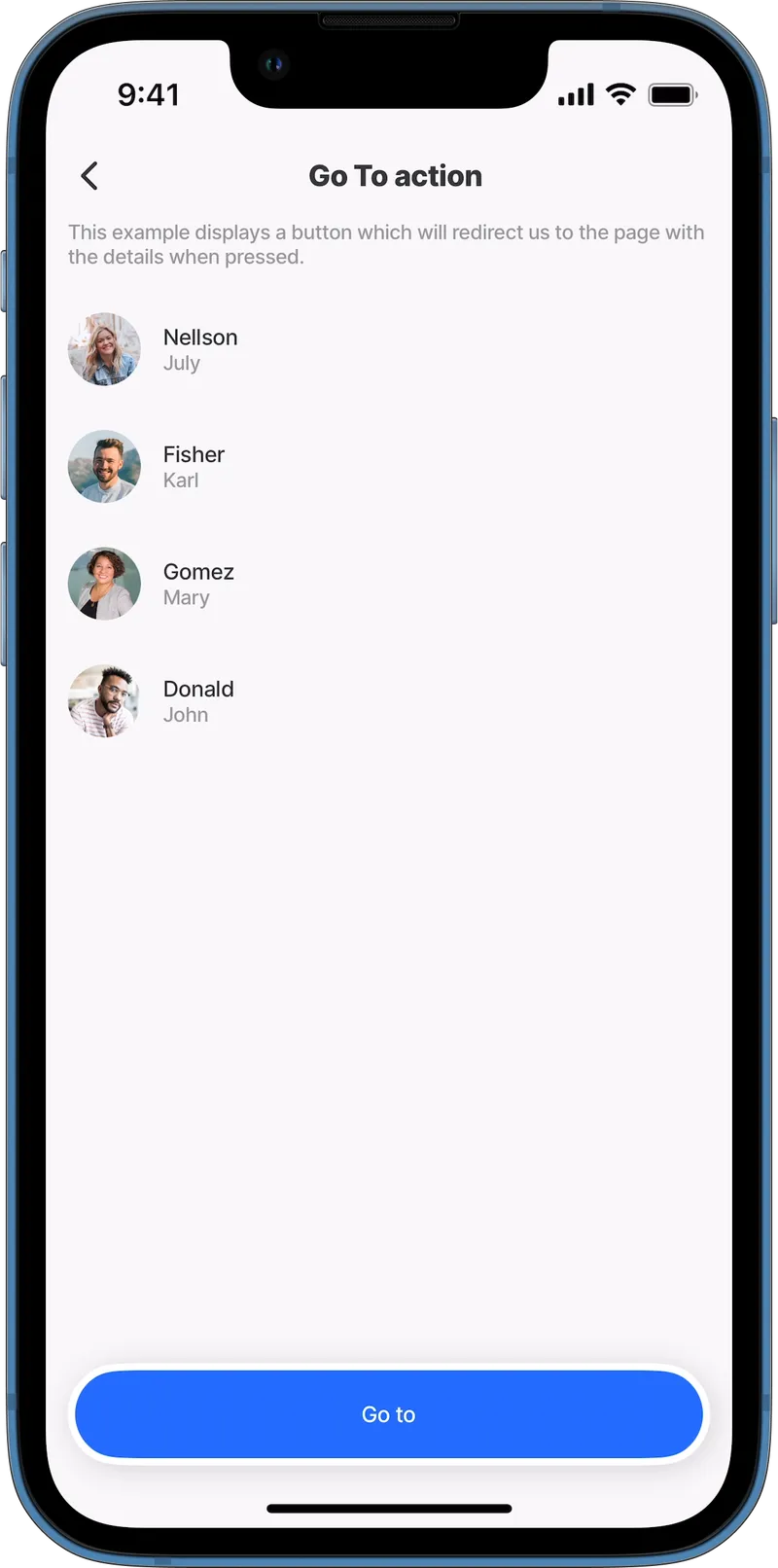
The simplest example of using a go-to action is to use it as a separate action. When configured, a button will appear at the bottom, redirecting us to the details page when pressed.
**Examples:**\
See the full example using static data in [GitHub](https://github.com/jigx-com/jigx-samples/blob/main/quickstart/jigx-samples/jigs/jigx-actions/go-to/static/go-to-action/go-to-action.jigx).\
See the full example using dynamic data in [GitHub](https://github.com/jigx-com/jigx-samples/blob/main/quickstart/jigx-samples/jigs/jigx-actions/go-to/dynamic/go-to-action/go-to-action-dynamic.jigx).
{% endcolumn %}
{% endcolumns %}
{% code title="go-to" %}
```yaml
actions:
- children:
- type: action.go-to
options:
title: Go to
linkTo: default-employee-detail
```
{% endcode %}
### go-to swipeable left/right
{% columns %}
{% column %}
go-to with swipeable
{% endcolumn %}
{% column %}
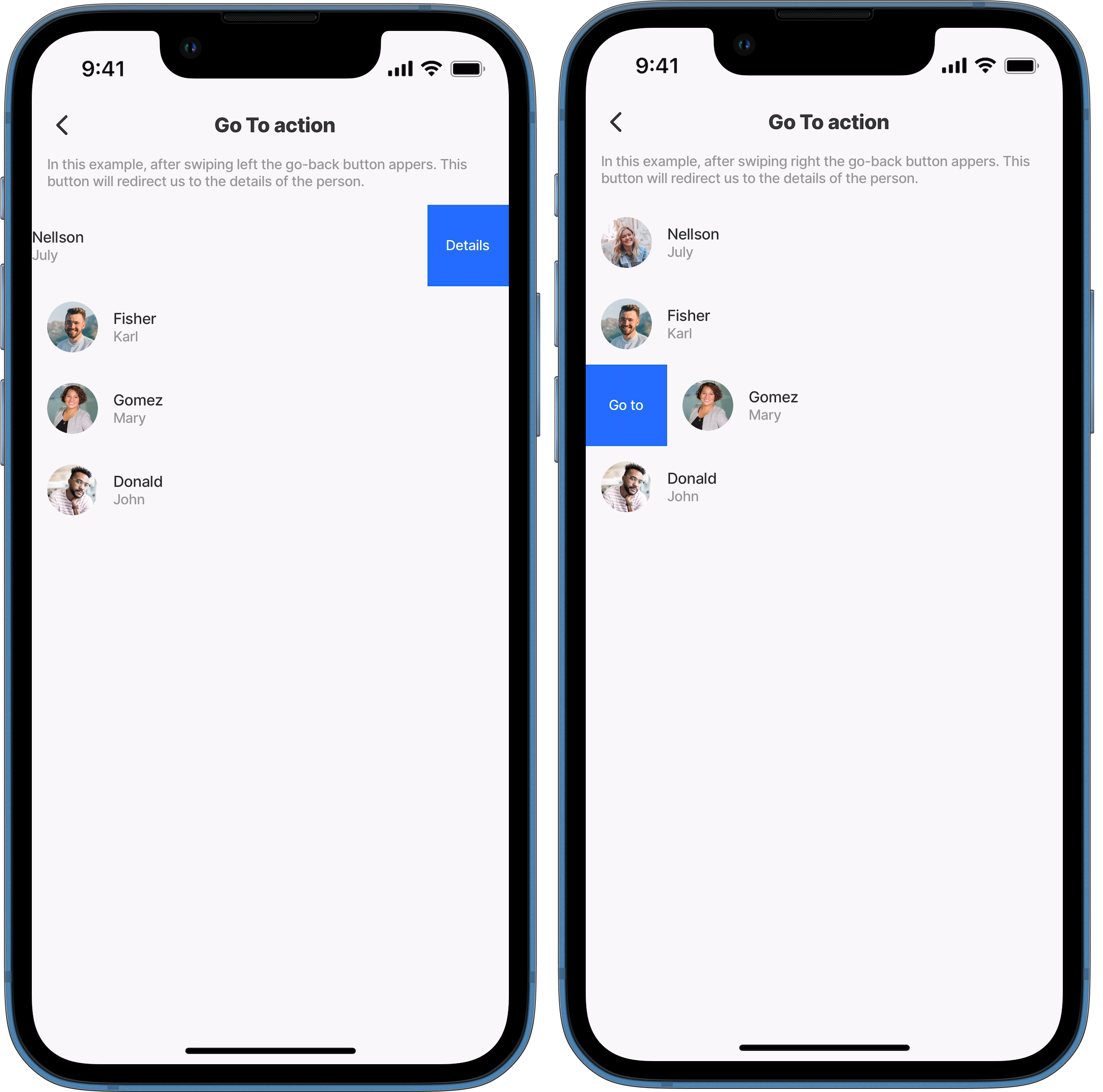
This example uses the go-to action as a swipeable property. We can choose the swipe direction left or right. After pressing the button, it will redirect to the details of the person.
**Examples left:** See the full example using static data in [GitHub](https://github.com/jigx-com/jigx-samples/blob/main/quickstart/jigx-samples/jigs/jigx-actions/go-to/static/go-to-swipeable/go-to-swipeable-left.jigx). See the full example using dynamic data in [GitHub](https://github.com/jigx-com/jigx-samples/blob/main/quickstart/jigx-samples/jigs/jigx-actions/go-to/dynamic/go-to-swipeable/go-to-left-dynamic.jigx).
**Examples right:** See the full example using static data in [GitHub](https://github.com/jigx-com/jigx-samples/blob/main/quickstart/jigx-samples/jigs/jigx-actions/go-to/static/go-to-swipeable/go-to-swipeable-right.jigx). See the full example using dynamic data in [GitHub](https://github.com/jigx-com/jigx-samples/blob/main/quickstart/jigx-samples/jigs/jigx-actions/go-to/dynamic/go-to-swipeable/go-to-right-dynamic.jigx).
{% endcolumn %}
{% endcolumns %}
{% tabs %}
{% tab title="left" %}
```yaml
item:
type: component.list-item
options:
title: =@ctx.current.item.lastname
subtitle: =@ctx.current.item.firstname
leftElement:
element: avatar
text: " "
uri: =@ctx.current.item.img
rightElement:
element: button
title: Go to
onPress:
type: action.go-to
options:
linkTo: default-employee-detail
```
{% endtab %}
{% tab title="right" %}
```yaml
item:
type: component.list-item
options:
title: =@ctx.current.item.lastname
subtitle: =@ctx.current.item.firstname
leftElement:
element: avatar
text: " "
uri: =@ctx.current.item.img
swipeable:
right:
- label: Go to
color: primary
onPress:
type: action.go-to
options:
linkTo: default-employee-detail
```
{% endtab %}
{% endtabs %}
### go-to right button element
{% columns %}
{% column %}
go-to button
{% endcolumn %}
{% column %}
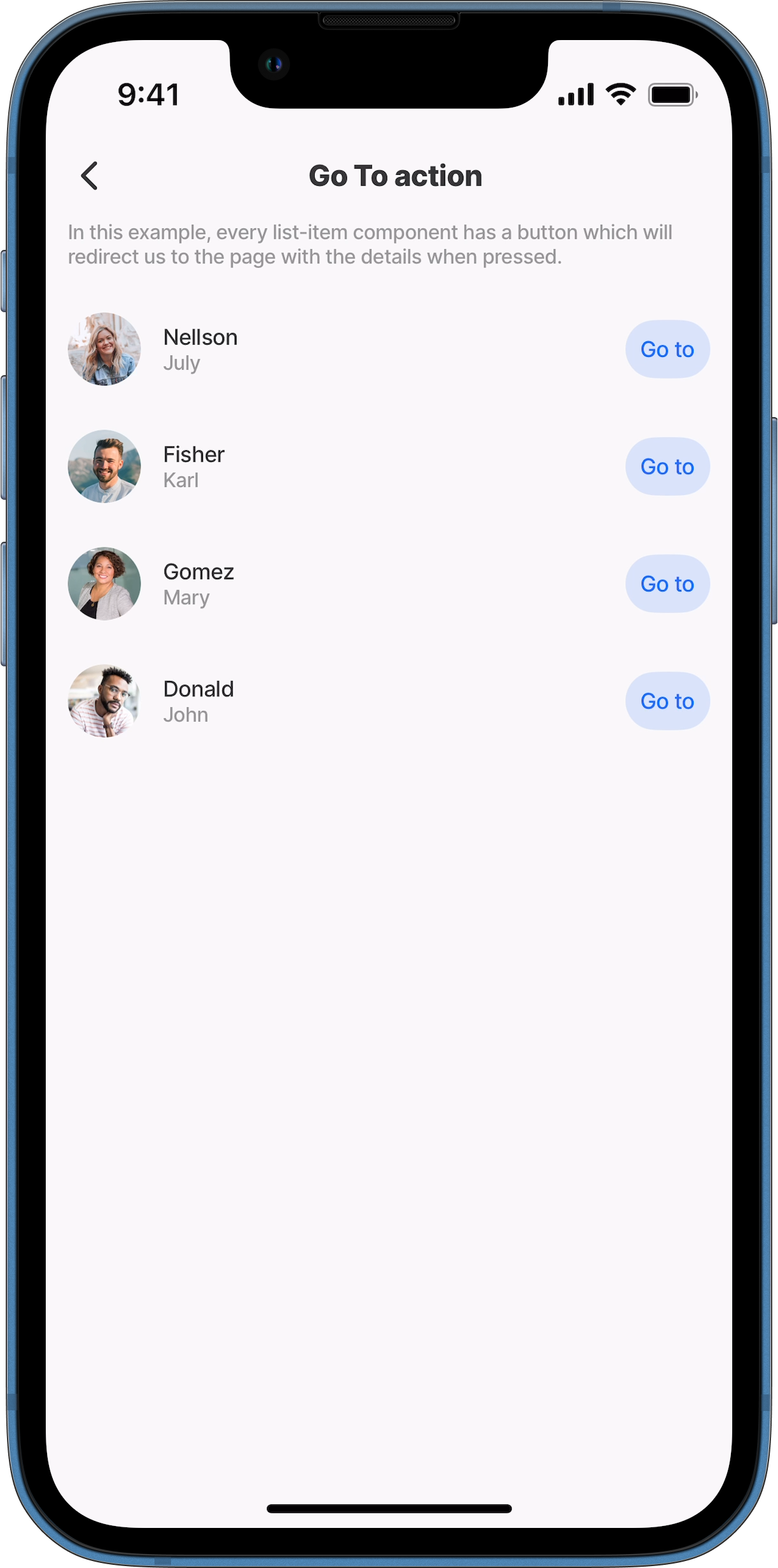
In this example, we use the go-to action as the rightElement in the list-item component. There is a button for each item.
**Examples:**\
See the full example using static data in [GitHub](https://github.com/jigx-com/jigx-samples/blob/main/quickstart/jigx-samples/jigs/jigx-actions/go-to/static/go-to-right-element/go-to-right-element.jigx).\
See the full example using dynamic data in [GitHub](https://github.com/jigx-com/jigx-samples/blob/main/quickstart/jigx-samples/jigs/jigx-actions/go-to/dynamic/go-to-right-element/go-to-right-element-dynamic.jigx).
{% endcolumn %}
{% endcolumns %}
{% code title="go-to-rightElement.jigx" %}
```yaml
item:
type: component.list-item
options:
title: =@ctx.current.item.lastname
subtitle: =@ctx.current.item.firstname
leftElement:
element: avatar
text: " "
uri: =@ctx.current.item.img
rightElement:
element: button
title: Go to
onPress:
type: action.go-to
options:
linkTo: default-employee-detail
```
{% endcode %}
### go-to onSuccess
{% columns %}
{% column %}
go-to onSuccess
{% endcolumn %}
{% column %}
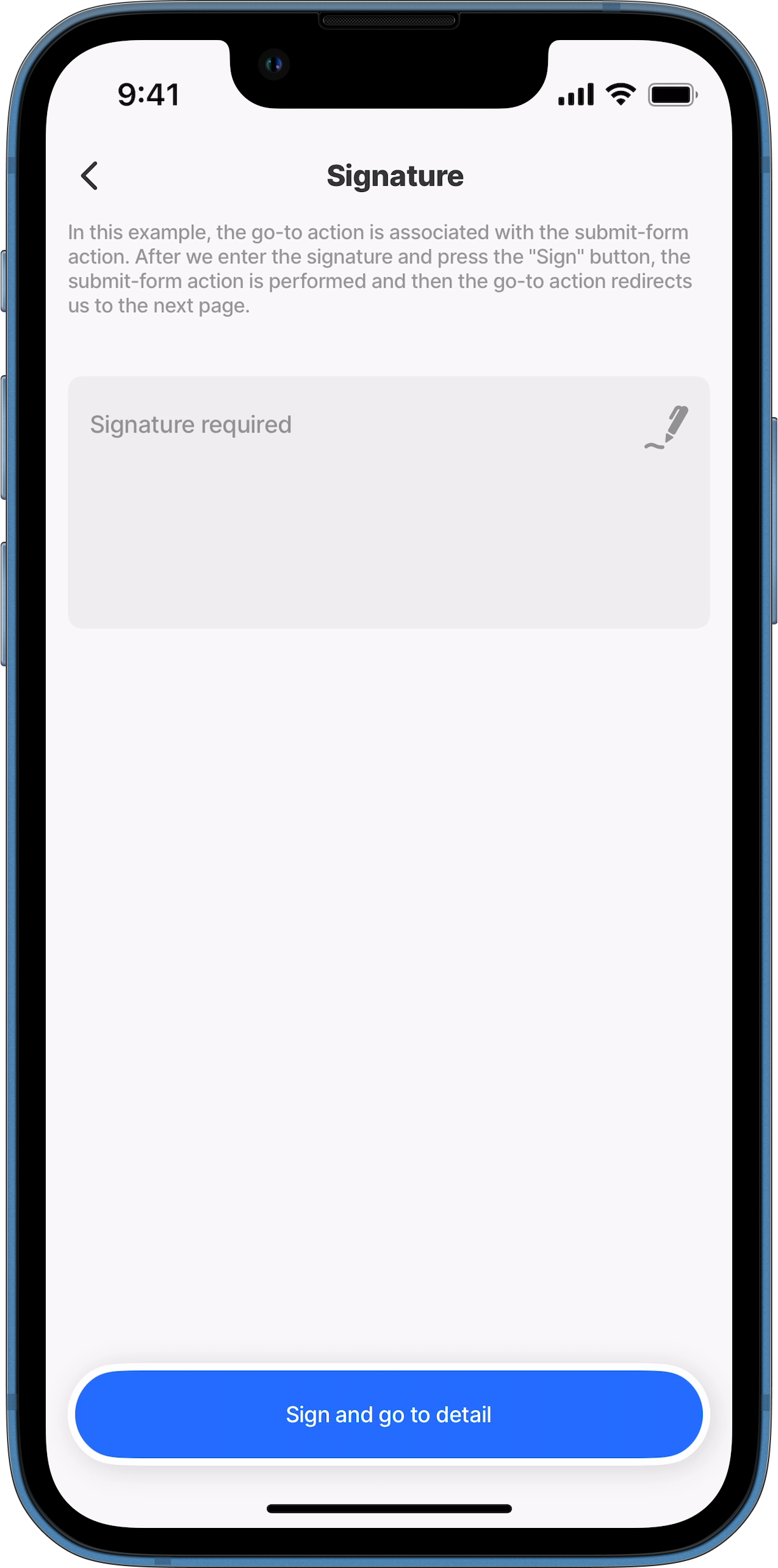
In this example, the go-back action is associated with the submit-form action. After we enter the signature and press the "Sign" button, the submit-form action is performed and then the go-to action redirects us to the next page.
**Examples:**\
See the full example using dynamic data in [GitHub](https://github.com/jigx-com/jigx-samples/blob/main/quickstart/jigx-samples/jigs/jigx-actions/go-to/dynamic/go-to-on-success/go-to-on-success.jigx).
{% endcolumn %}
{% endcolumns %}
{% code title="go-to-onSuccess.jigx" %}
```yaml
actions:
- children:
- type: action.action-list
options:
title: Sign and go to detail
isSequential: true
actions:
- type: action.execute-entity
options:
provider: DATA_PROVIDER_DYNAMIC
entity: default/form
method: create
data:
signature: =@ctx.components.signature.state.value
onSuccess:
title: Succesfully signed
actions:
- type: action.go-to
options:
title: Go to employee detail
linkTo: default-employee-detail
- type: action.go-back
```
{% endcode %}
### go-to open a jig as a modal
{% columns %}
{% column %}
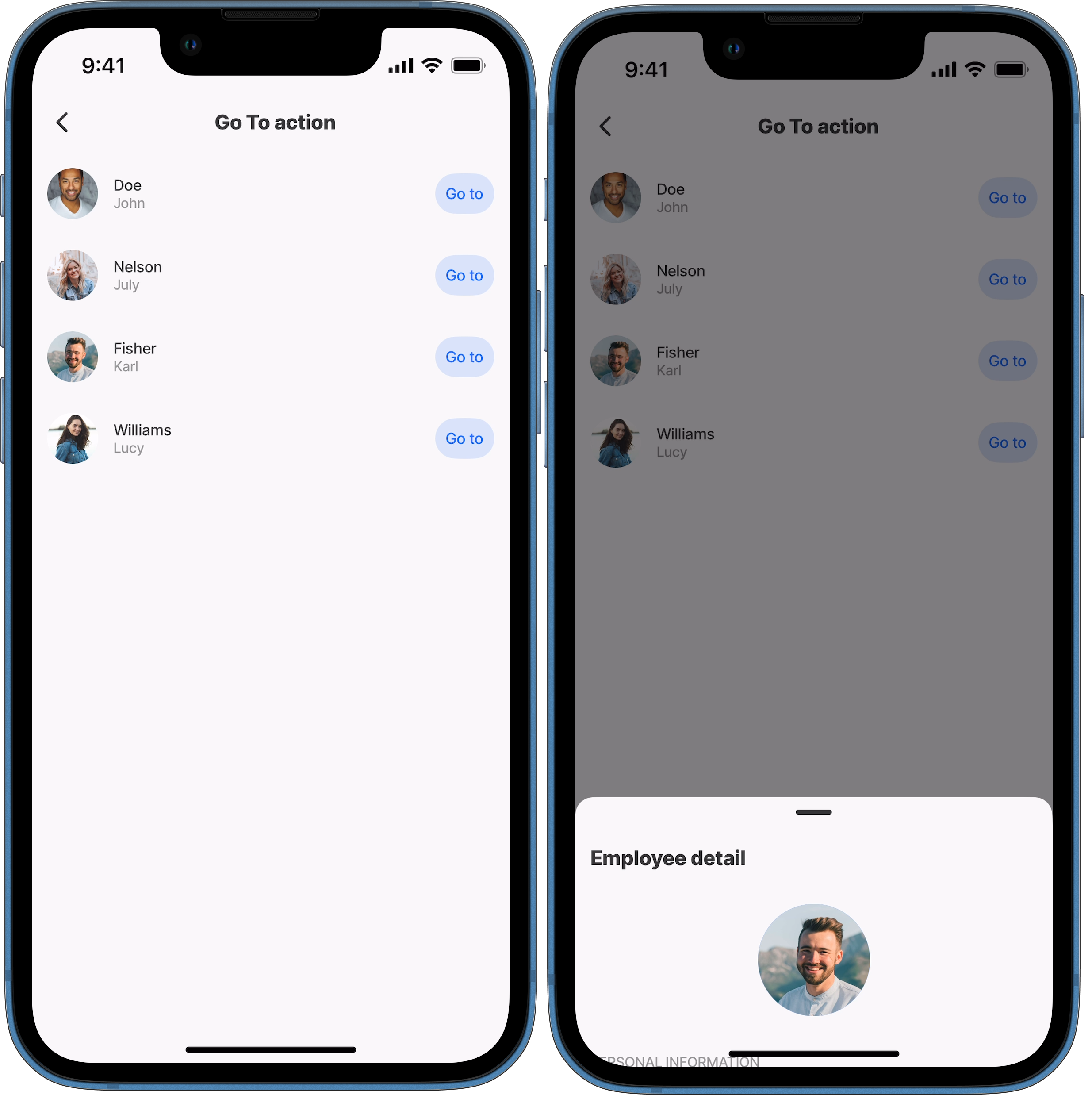
In this example, we use the `go-to` action as the `rightElement` in the `list-item` component. There is a button for each item. When tapped the `go-to` will open the jig as a modal when the `isModal` property is set to `true`.
**Examples:**\
See the full example using dynamic data in GitHub.
{% endcolumn %}
{% column %}
Open jig in a modal
{% endcolumn %}
{% endcolumns %}
{% tabs %}
{% tab title="go-to-ismodal.jigx" %}
```yaml
title: Go To action
type: jig.list
data: =@ctx.datasources.employees-dynamic
item:
type: component.list-item
options:
title: =@ctx.current.item.lastname
subtitle: =@ctx.current.item.firstname
leftElement:
element: avatar
text: " "
uri: =@ctx.current.item.photo
rightElement:
element: button
title: Go to
onPress:
type: action.go-to
options:
# When navigating to the jig, the jig opens as a modal,
# specifying false will open as a normal jig.
isModal: true
linkTo: default-employee-detail
```
{% endtab %}
{% tab title="default-employee-detail.jigx" %}
```yaml
title: Employee detail
type: jig.default
children:
- type: component.avatar
options:
title: ""
uri: https://images.unsplash.com/photo-1591084728795-1149f32d9866?ixlib=rb-1.2.1&ixid=MnwxMjA3fDB8MHxwaG90by1wYWdlfHx8fGVufDB8fHx8&auto=format&fit=crop&w=928&q=80
size: large
align: center
- type: component.entity
options:
children:
- type: component.section
options:
title: Personal information
children:
- type: component.field-row
options:
children:
- type: component.entity-field
options:
label: Birth date
value: "12.02.1993"
- type: component.entity-field
options:
label: Gender
value: Male
- type: component.field-row
options:
children:
- type: component.entity-field
options:
label: Email
value: fisher@first.com
contentType: email
- type: component.entity-field
options:
label: Phone
value: "+61 392 482 323"
contentType: phone
- type: component.section
options:
title: Address
children:
- type: component.field-row
options:
children:
- type: component.entity-field
options:
label: Street
value: 14 Argyle Street
- type: component.entity-field
options:
label: City
value: Titaatee Creek
- type: component.field-row
options:
children:
- type: component.entity-field
options:
label: State
value: New South Wales
- type: component.entity-field
options:
label: Country
value: Australia
- type: component.list
options:
data: =@ctx.datasources.quartal
isHorizontal: true
item:
type: component.pie-chart
options:
chart:
title:
text: =@ctx.current.item.title
verticalAlign: center
subtitle:
text: =@ctx.current.item.subtitle
verticalAlign: center
width: 140
height: 140
isAnimated: true
legend:
isHidden: true
series:
- data: =@ctx.current.item.data
```
{% endtab %}
{% tab title="employees-dynamic.jigx" %}
```yaml
type: datasource.sqlite
options:
provider: DATA_PROVIDER_DYNAMIC
entities:
- entity: default/employees
query: |
SELECT
id,
'$.firstname',
'$.lastname',
'$.picture',
'$.modify',
'$.date_from',
'$.date_to',
'$.email',
'$.phone',
'$.percentage',
'$.category',
'$.photo',
'$.time'
FROM [default/employees]
WHERE '$.category' = "employees" ORDER BY '$.firstname' ASC
```
{% endtab %}
{% tab title="quartal.jigx" %}
```yaml
type: datasource.static
options:
data:
- title: 91%
subtitle: Q1/2022
data:
- y: 91
color: positive
- y: 9
color: transparent
- title: 99%
subtitle: Q2/2022
data:
- y: 99
color: positive
- y: 1
color: transparent
- title: 10%
subtitle: Q3/2022
data:
- y: 10
color: positive
- y: 90
color: transparent
- title: 0%
subtitle: Q4/2022
data:
- y: 0
color: positive
- y: 100
color: transparent
```
{% endtab %}
{% endtabs %}
### go-to using new & existing behaviour
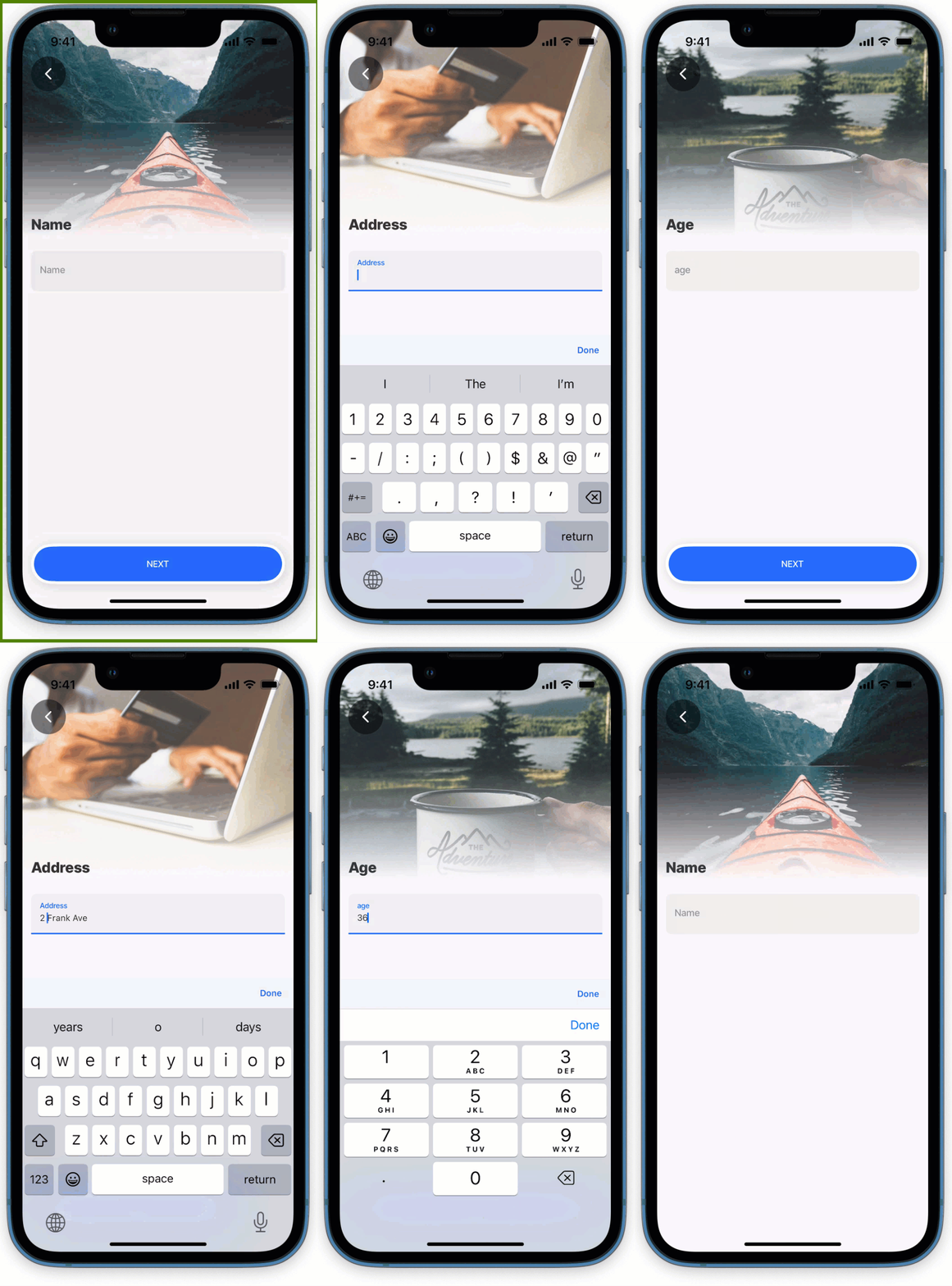
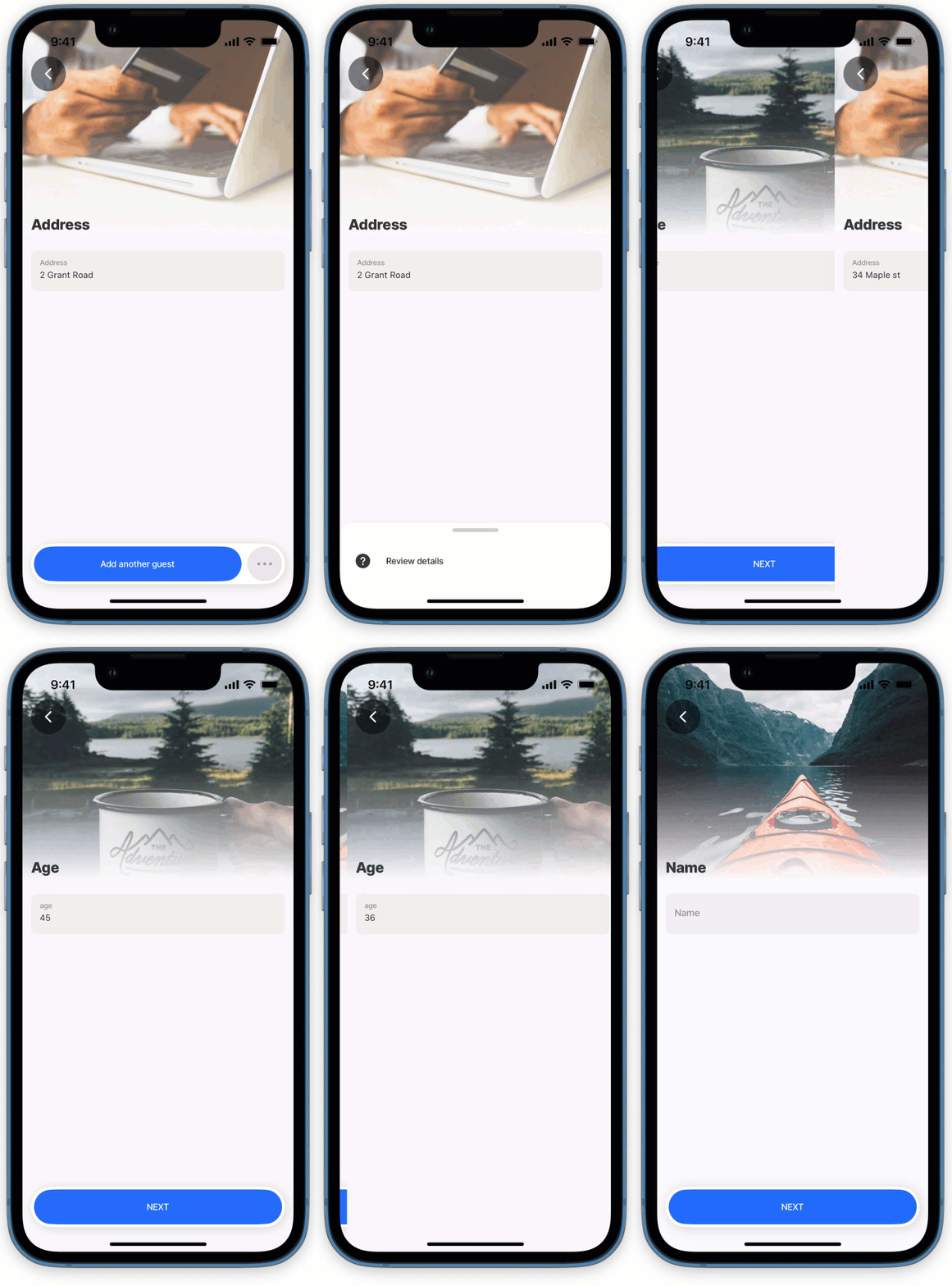
In this example, three jigs are configured to create a stack of data for each guest, including their Name, Age, and Address. Each jig's `go-to` action is set with the `behaviour` property as `new`, enabling new guest details to be pushed into the app history. In the final jig, a secondary `go-to` action is added. This action introduces a button to review each guest's data by setting the `behaviour` property to `existing` and linking to the first jig in the stack via the `linkTo` property. The review process will cycle through each guest's details in the stack before completing.
{% columns %}
{% column %}
Go-to new guest
{% endcolumn %}
{% column %}
Review guests
{% endcolumn %}
{% endcolumns %}
{% tabs %}
{% tab title="jig-a.jigx" %}
```yaml
title: Name
type: jig.default
onFocus:
type: action.reset-state
options:
state: =@ctx.solution.state
header:
type: component.jig-header
options:
height: medium
children:
type: component.image
options:
source:
uri: https://images.unsplash.com/photo-1521336575822-6da63fb45455?w=800&auto=format&fit=crop&q=60&ixlib=rb-4.0.3&ixid=M3wxMjA3fDB8MHxzZWFyY2h8MTB8fGFkdmVudHVyZXxlbnwwfHwwfHx8MA%3D%3D
children:
- type: component.form
instanceId: form-a
options:
isDiscardChangesAlertEnabled: false
children:
- type: component.text-field
instanceId: fullName
options:
label: Name
actions:
- children:
- type: action.action-list
options:
title: NEXT
isSequential: true
actions:
- type: action.execute-entity
options:
provider: DATA_PROVIDER_LOCAL
entity: guests
method: save
data:
fullName: =@ctx.components.fullName.state.value
# The go-to action is configured to open the next jig in the stack.
- type: action.go-to
options:
# Set the parameters to use the value held in the state,
# this will be used as an input throughout the stack.
inputs:
fullName: =@ctx.components.fullName.state.value
# Select new to push the jig into the app history,
# this allows you to capture the next jig's data in the stack.
behaviour: new
# Configure which jig must open next.
linkTo: jig-b
```
{% endtab %}
{% tab title="jig-b.jigx" %}
```yaml
title: Age
type: jig.default
# Use inputs from the first jig in the stack.
inputs:
fullName:
type: string
required: true
header:
type: component.jig-header
options:
height: medium
children:
type: component.image
options:
source:
uri: https://images.unsplash.com/photo-1471400974796-1c823d00a96f?w=800&auto=format&fit=crop&q=60&ixlib=rb-4.0.3&ixid=M3wxMjA3fDB8MHxzZWFyY2h8M3x8YWR2ZW50dXJlfGVufDB8fDB8fHww
children:
- type: component.form
instanceId: form-a
options:
isDiscardChangesAlertEnabled: false
children:
- type: component.number-field
instanceId: age
options:
label: age
actions:
- children:
- type: action.action-list
options:
title: NEXT
isSequential: true
actions:
- type: action.execute-entity
options:
provider: DATA_PROVIDER_LOCAL
entity: guests
method: save
data:
age: =@ctx.components.age.state.value
# Select new to push the jig into the app history,
# this allows you to capture the next jig's data in the stack.
- type: action.go-to
options:
# Set the parameters to use the input value passed from the
# first jig in the stack.
inputs:
fullName: =@ctx.jig.inputs.fullName
# Select new to push the jig into the app history,
# this allows you to capture the next jig's data in the stack.
behaviour: new
# Configure which jig must open next in the stack.
linkTo: jig-c
```
{% endtab %}
{% tab title="jig-c.jigx" %}
```yaml
title: Address
type: jig.default
# Use inputs from the first jig in the stack.
inputs:
fullName:
type: string
required: true
header:
type: component.jig-header
options:
height: medium
children:
type: component.image
options:
source:
uri: https://images.unsplash.com/photo-1563013544-824ae1b704d3?w=800&auto=format&fit=crop&q=60&ixlib=rb-4.0.3&ixid=M3wxMjA3fDB8MHxzZWFyY2h8MTB8fG9ubGluZSUyMGNhcnR8ZW58MHx8MHx8fDA%3D
children:
- type: component.form
instanceId: form-a
options:
isDiscardChangesAlertEnabled: false
children:
- type: component.text-field
instanceId: address
options:
isMultiline: true
label: Address
actions:
- children:
- type: action.go-to
options:
inputs:
fullName: =@ctx.jig.inputs.fullName
# In this go-to action we go back to start capturing the next stack
# in the data set.
title: Add another guest
# Select new to push the jig into the app history,
# this allows you to capture the next set of data for a new stack.
behaviour: new
# Open the first jig in the stack to start capturing the new stack
# of data.
linkTo: jig-a
# Add a second go-to action that will create a secondary button,
# allowing you to review the existing data set in the stack.
# Add existing to behaviour which will cycle through all the jigs in
# the history, showing the jig with the data for each jig.
# Note the jigs will cycle through the screens for each capture,
# meaning if you captured 3 sets in the stack, all 3 stacks are shown.
- type: action.go-to
options:
title: Review details
# Select existing to return and display the jig data
# that is held in the app history.
behaviour: existing
# Open the first jig in the stack to start cycling through the data
# for each stack captured.
linkTo: jig-a
```
{% endtab %}
{% endtabs %}
### Accessing jig outputs from a modal
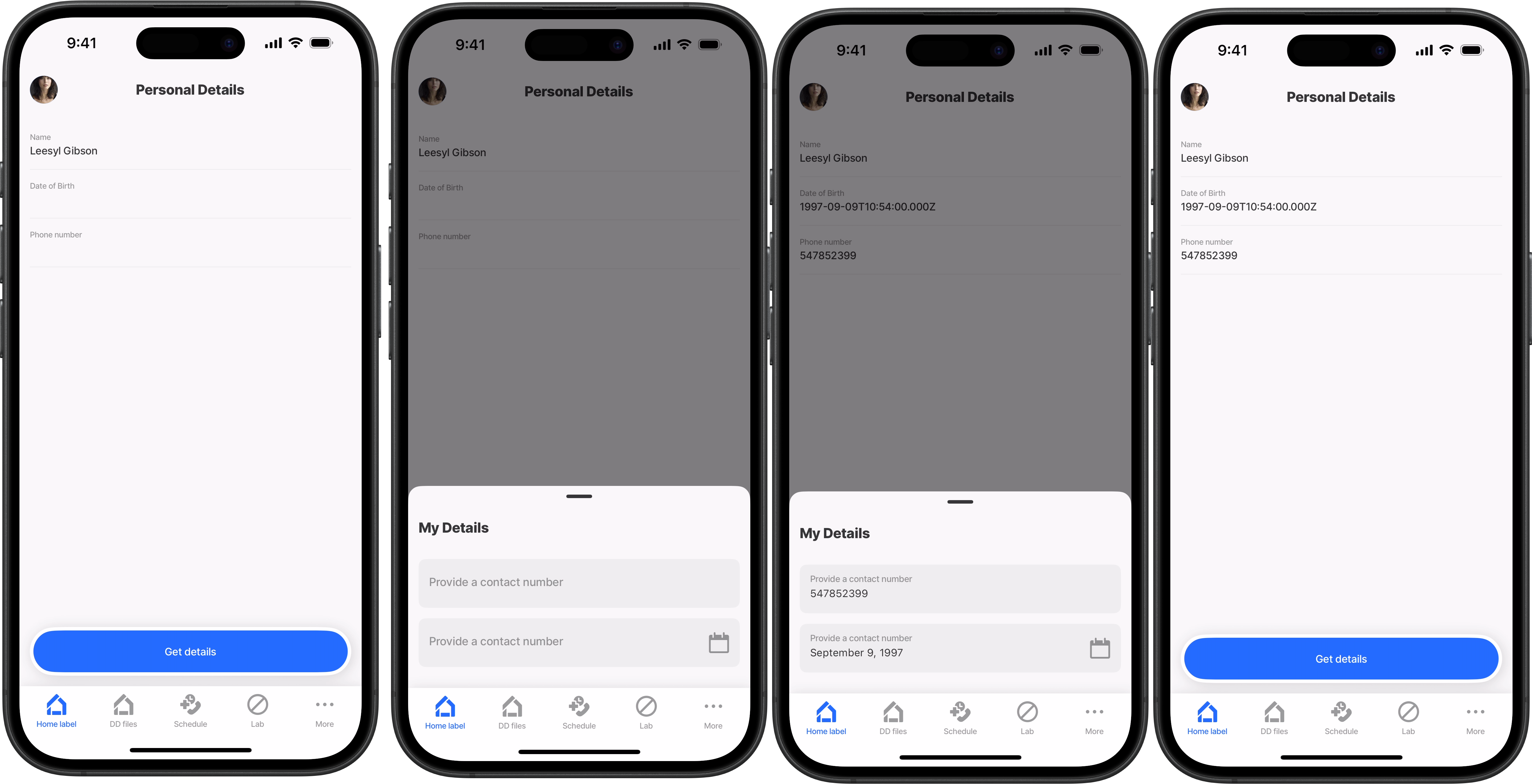
When you navigate to a jig using the `action.go-to` or open it as a bottom modal (by setting `isModal: true`), you can access the outputs from that jig by referencing its `instanceId` in your context expressions. In the originating jig, use the syntax `=@ctx.jigs.[isntance-id-of-the-jig].outputs.[key-of-output]` to retrieve specific output values. The `instanceId` must match the one specified in the `instanceId` field of your navigation action, and the key corresponds to the specific output field you want to access from the target jig. This allows for seamless data flow between jigs, whether they're opened as full-screen navigations or modal overlays, enabling you to capture user interactions and form submissions from the modal jig and use them in the parent jig's logic or display.
go-to action with outputs
{% tabs %}
{% tab title="Jig A-navigation" %}
```yaml
title: Personal Details
type: jig.default
# Navigate to another jig with go-to action.
actions:
- numberOfVisibleActions: 1
children:
- type: action.go-to
options:
title: Get details
linkTo: values
isModal: true
# Specify an instanceID for the target jig (Jig B-target jig)
instanceId: MyDetails
children:
- type: component.entity
options:
children:
- type: component.entity-field
options:
label: Name
value: =@ctx.user.displayName
- type: component.entity-field
options:
label: Date of Birth
# Use the expression in the format
# =@ctx.jigs.[isntance-id-of-the-jig].outputs.[key-of-output],
# to display the output of the target jig.
value: =@ctx.jigs.MyDetails.outputs.DOB
- type: component.entity-field
options:
label: Phone number
# Display the output of the target jig.
value: =@ctx.jigs.MyDetails.outputs.phone
```
{% endtab %}
{% tab title="Jig B- target jig" %}
```yaml
title: My Details
type: jig.default
children:
- type: component.number-field
instanceId: myNumber
options:
label: Provide a contact number
- type: component.date-picker
instanceId: myBirth
options:
label: Provide a contact number
# Specify the outputs that will be passed and displayed in Jig A
outputs:
phone: =@ctx.components.myNumber.state.value
DOB: =@ctx.components.myBirth.state.value
```
{% endtab %}
{% endtabs %}
### Accessing a jig in another solution
{% columns %}
{% column %}
Go-to another solutions jig
{% endcolumn %}
{% column %}
In this example, the project assignments list in `projects-solution` uses the `go-to` action to navigate to an employee list in a completely separate solution. The `package` property is set to `hr-solution` , the package name of the target solution, and the `linkTo` property is set to `employee-list`, the name of the jig to open within that solution. An `employeeId` parameter is passed along so the target jig knows which employee record to display in the list. When the user taps a project in `projects-solution`, the `employee-list` jig from `hr-solution` opens seamlessly within the same app experience, with no need to duplicate the employee screens or data across solutions.
{% endcolumn %}
{% endcolumns %}
{% tabs %}
{% tab title="projects-assignments.jigx (projects-solution)" %}
```yaml
onPress:
type: action.go-to
options:
# Navigate to the employee list jig in hr-solution (package)
package: hr-solution
linkTo: employee-list
```
{% endtab %}
{% tab title="employee-list.jigx (hr-solution)" %}
```yaml
# This jig is in the hr-solution and will open in projects-solution
# when the go-to action is executed.
title: Employees
type: jig.list
icon: contact
header:
type: component.jig-header
options:
height: small
children:
type: component.image
options:
source:
uri: https://images.unsplash.com/photo-1506869640319-fe1a24fd76dc?q=80&w=1470&auto=format&fit=crop&ixlib=rb-4.1.0&ixid=M3wxMjA3fDB8MHxwaG90by1wYWdlfHx8fGVufDB8fHx8fA%3D%3D
data: =@ctx.datasources.employees
item:
type: component.list-item
options:
title: =@ctx.current.item.full_name
subtitle: =@ctx.current.item.job_title
isContained: true
leftElement:
element: avatar
text: =@ctx.current.item.full_name
uri: =@ctx.current.item.full_name
```
{% endtab %}
{% endtabs %}
---
# Agent Instructions
This documentation is published with GitBook. GitBook is the documentation platform designed so that both humans and AI agents can read, navigate, and reason over technical content effectively. Learn more at gitbook.com.
## Querying This Documentation
If you need additional information that is not directly available in this page, you can query the documentation by asking a question.
Perform an HTTP GET request on the following URL with the `ask` and `goal` query parameters:
```
GET https://docs.jigx.com/examples/readme/actions/go-to.md?ask=&goal=
```
`ask` is the immediate question: it should be specific, self-contained, and written in natural language.
`goal` is what the user is ultimately trying to achieve, the reason they need the answer. Sharing it helps GitBook give you a better, more relevant answer. A goal is most helpful when it describes the outcome the user wants rather than restating the question. For example, with `ask=how do I create an API token`, a goal like `automate deployments from our CI pipeline` lets GitBook tailor the answer to that use case.
The response will contain a direct answer to the question and relevant excerpts and sources from the documentation.
Use this mechanism when the answer is not explicitly present in the current page, you need clarification or additional context, or you want to retrieve related documentation sections.