media-field
The media-field component allows users to upload images, videos, or files, either standalone or within a form. It supports:
Preview and thumbnails, with built-in delete controls
Single or multiple selection
Cropping and quality settings
Size limits and type filtering

Configuration options
The
media-fieldcan only be used in a jig.default.The
media-fieldrequires a datasource to store the files, you can configure one of the Data Providers for this.Conversions allow you to determine the format the files are stored in and loaded from the datasource.
Jigx recommends storing images and files using Dynamic files, where the files are physically stored in Amazon S3.
Some properties are common to all components, see Common component properties for a list and their configuration options.
instanceId
Provide a unique identifier for the media-field component.
label
Label is displayed as a placeholder if there is no value provided. Use this property to provide a value that will guide the user to identify what must be uploaded, such as Upload file or Upload a video.
mediaType
By default the value is set to image. Configure filters to restrict media types based on your app’s requirements, for example, only allow document files DOC, PDF or plain text. Multiple options can be listed to provide greater scope of filtering, i.e. PDF and DOC files. The following options are available for selection: 1) any is for files of any extension such as pdf, jpeg, png, mpeg, txt, or docx. Set to any allows you to take a picture, record a video, select an image or video from the library, or select a document. Using mediaType: any is recommended when uploading multiple media files as it caters for any file type. 2) csv - select CSV files. 3) doc - select DOC or DOCX files. 4) image - used to take a picture or select from the image library. 5) imageAndVideo - take a picture, record a video or select an image or video from the library. 6) pdf - select PDF files. 7) plainText - select plain text files. 8) ppt - select PPT or PPTX files. 9) video - record a video or upload one from the library. 10) xls - select XLS or XLSX files.
intialValue
The initialValue property populates the media-field with the specified files when the field first loads, allowing you to preset default media so users don’t need to select files manually. To update the media, simply tap the media-field and upload a new selection. Note that using the reset-state action will not clear the field entirely; it always restores the media-field back to its configured initialValue.
imageCropping
You can set any of the following with imageCropping :
isEnabled- allows you to crop an image.height- maximum allowed is 5000px.width- maximum allowed is 5000px.isFreeStyleCropEnabled- when set totrueit supports custom cropping to change the size or aspect ratio of an image.
imageQuality
Image quality after compression (from 0 to 100, where 100 is the best quality). On iOS, values larger than 80 don't produce a noticeable quality increase in most images, while a value of 80 will reduce the file size by about half or less compared to a value of 100. Default: 100 (Android)/ 80 (iOS).
isMultiple
Set to true allows for multiple files to be added. Set to false allows for a single file.
maximumFileSize
maximumFileSize =6 * 1024 * 1024 by default. Set the value to none if no size evaluations must be performed. File size format is in bytes. Applies to images and videos.
action.open-media-picker
Configure the open-media-picker action to either launch the camera immediately so you can capture a photo or video, or open the media library to select existing files and return their paths.
Working with media files as data
When using a media-field in Jigx, storing and loading certain files, such as images or videos, must be configured through a datasource such as Dynamic Files, REST, or SQL. The selected datasource determines how the files are stored, retrieved, and managed. Additional configuration may be required, such as specifying file paths, formats, or storage references, to ensure compatibility across devices and use cases, including offline access or multi-platform viewing. Proper configuration also helps optimize storage space by avoiding duplication, compressing media where possible, and ensuring that only required media is retained. The table below outlines the additional configuration needed for each datasource type.
Dynamic Data with Dynamic Files
Use action.execute-entities with DATA_PROVIDER_DYNAMIC , including the file property. Files are stored in Amazon S3. See Dynamic files for setup.
Files are retrieved via a datasource query using DATA_PROVIDER_DYNAMIC. The file is linked to the record and can be accessed based on query results.
REST
Use action.execute-entities with conversions in the Jigx function to transform local-uri to a format suitable for uploading to your backend (e.g., base64, buffer). Use a create or save method in the DATA_PROVIDER_REST to send the data.
On loading, convert the backend format (e.g., buffer or base64) back into a local-uri in the Jigx function, so the file can be displayed. Files are retrieved via a datasource query using DATA_PROVIDER_REST.
SQL
Use action.execute-entities with conversions in the Jigx function to transform local-uri into a suitable format (e.g., base64 or buffer) for storing in the database. Use the create or save method in the DATA_PROVIDER_SQL to send the data.
On load, convert the stored SQL file format back into a local-uri in the Jigx function, to display in the media-field. Files are retrieved via a datasource query using DATA_PROVIDER_SQL.
iOS device
When storing files from iOS, use the convertHeicToJpg property to ensure compatibility across devices.
iOS reads standard file formats like JPG or PNG via local-uri. If the file is HEIC, conversion may be required for cross-device viewing.
Android device
Store media using one of the data providers; ensure files are correctly referenced from their captured local-uri. No special conversion needed for common formats like JPG or PNG.
Android can read from local-uri. Ensure file paths are valid. Cross-device issues may occur with platform-specific formats if not converted (e.g., HEIC).
Considerations
To discard selected or recorded images, videos or files before submitting them, click on the media thumbnail at the bottom of the selection modal.
An image, video, or file can be referenced for upload from a datasource, for example, in the
initialValueproperty.If a file can’t be displayed using the
initialValueproperty, the app will show an icon with the file’s name instead. This usually happens because Android and iOS use different file path formats. To ensure images display correctly on all devices, convert iOS HEIC images to JPG before saving them. See conversions for more information.When uploading multiple files, the media-field displays up to three files by default. If more than three files are selected, the third file is overlaid with a + and the count of additional files (e.g., +2) to indicate how many are not shown. While the total number of files to be added is displayed in the top-right corner of the media-field.
Files captured using the
media-fieldcomponent can be saved to Dynamic Files by assigning them to thefileproperty of a dynamic data entity, enabling seamless upload and storage in Amazon S3.You can use the open-media-picker action to invoke the
media-fieldcomponent to either open the device's camera when tapping the action button, or to select media files and output selected paths.
Examples using media-field configurations
Restrict or filter the upload of media file types
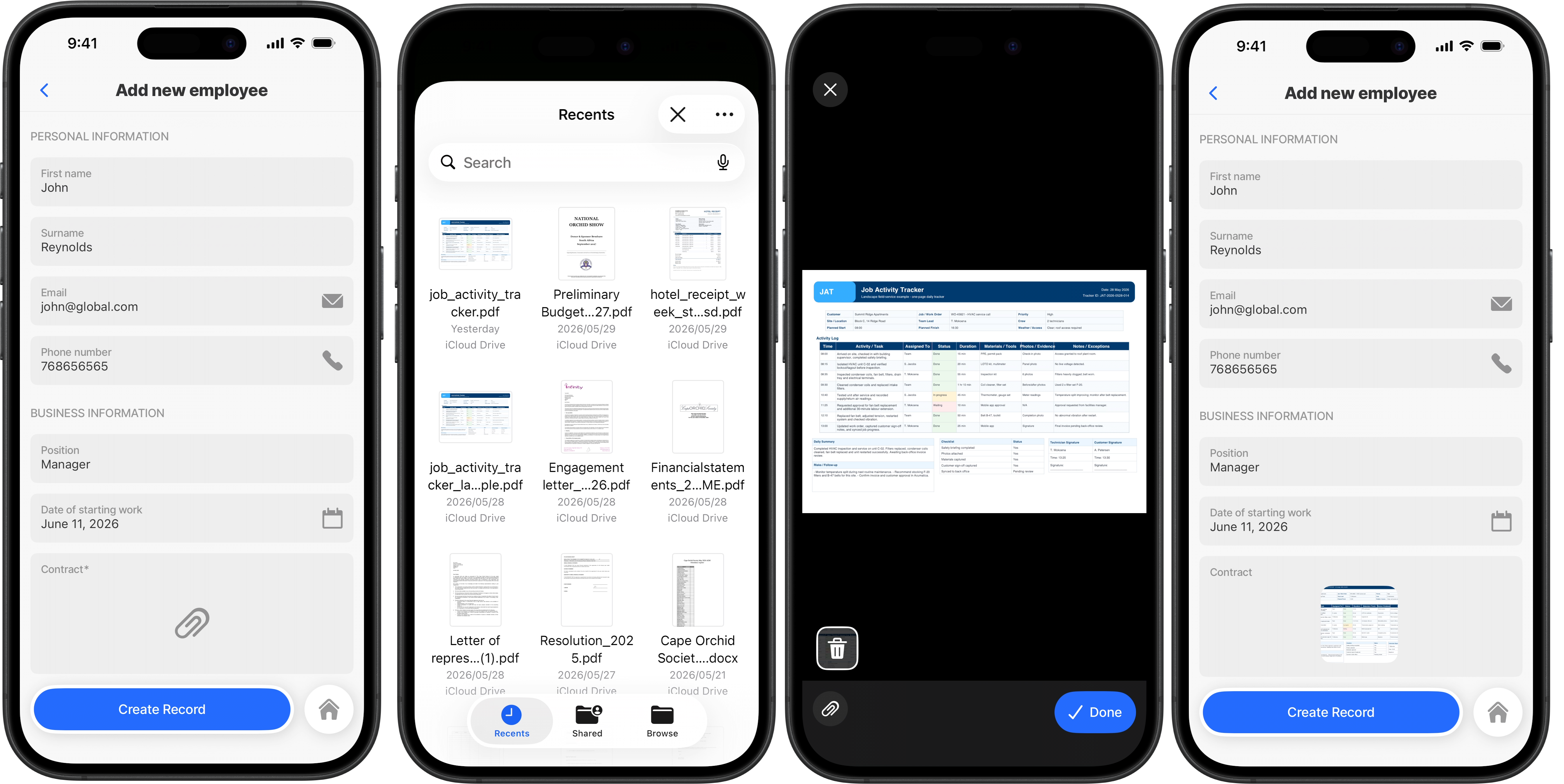
This example shows a form for a new employee, configured with a media-field component that allows the employee to upload their signed employment contract. File formats are restricted to DOC and PDF. The media picker opens and displays only PDF and DOC files for selection.

title: Add new employee
type: jig.default
icon: person
header:
type: component.jig-header
options:
height: medium
children:
type: component.image
options:
source:
uri: https://images.unsplash.com/photo-1517245386807-bb43f82c33c4?ixlib=rb-4.0.3&ixid=MnwxMjA3fDB8MHxwaG90by1wYWdlfHx8fGVufDB8fHx8&auto=format&fit=crop&w=1740&q=80
children:
- type: component.form
instanceId: new-employee
options:
isDiscardChangesAlertEnabled: false
children:
- type: component.number-field
instanceId: employee-id
options:
label: employeeId
isHidden: true
initialValue: =($count(@ctx.datasources.employees-1.id) = 0 ? 1 :$count(@ctx.datasources.employees-1.id) + 1)
- type: component.avatar-field
instanceId: employee-photo
options:
label: Photo
- type: component.section
options:
title: Personal information
children:
- type: component.text-field
instanceId: employee-first-name
options:
label: First name
- type: component.text-field
instanceId: employee-surname
options:
label: Surname
- type: component.email-field
instanceId: employee-email
options:
label: Email
icon: email
- type: component.number-field
instanceId: employee-phone-number
options:
label: Phone number
icon: phone
- type: component.section
options:
title: Business information
children:
- type: component.text-field
instanceId: employee-position
options:
label: Position
- type: component.date-picker
instanceId: employee-startWork
options:
label: Date of starting work
# Configure the media-field for uploading the contract.
- type: component.media-field
instanceId: employee-contract
options:
label: Contract
# Restrict the media files that can be uploaded to DOC & PDF.
# The picker will open and display all DOC & PDF files.
mediaType:
- pdf
- doc
actions:
- children:
# Use excute-entities to create the Dynamic Data record.
- type: action.execute-entities
options:
title: Create Record
provider: DATA_PROVIDER_DYNAMIC
entity: default/employees
method: create
data:
employee-first-name: [email protected]
employee-surname: [email protected]
employee-email: [email protected]
employee-photo: [email protected]
employee-position: [email protected]
employee-startWork: [email protected]
employee-contract: [email protected]
# Add the file (Dynamic files) property,
# to link the document to the record.
file:
localPath: [email protected]Upload image & use freestyle cropping
This component uploads an image using the mediaType: image property. Clicking on the paperclip icon will display a menu where you can choose to upload an existing image from your device or use the camera to take a new image. After selecting or capturing the image, and cropping the image to the specified size, the media-field is first validated, then the upload button becomes enabled. Pressing the Upload image button at the bottom will trigger an action to create an entry with the image.
Examples: See the full example in GitHub.

title: Media field image upload
type: jig.default
icon: image-document-jpg
children:
- type: component.form
instanceId: media-form
options:
children:
- type: component.media-field
instanceId: image
options:
mediaType: image
label: Upload image
maximumFileSize: none
imageCropping:
width: 500
height: 450
isFreeStyleCropEnabled: true
actions:
- children:
# Media field requires an action to be uploaded.
# For this example we upload to the local data provider.
- type: action.execute-entity
options:
title: Upload image
# you can use other data stores, e.g. REST data provider.
provider: DATA_PROVIDER_LOCAL
entity: products
method: create
data:
image: [email protected]
createdby: [email protected]
createDate: =$now()
onSuccess:
type: action.go-backUpload multiple files
In this example we set the isMultiple property to true which allows for the selection of multiple media to be uploaded and MediaType to any which caters for images, videos and documents. The selected media display as thumbnails at the bottom of the modal. Discard media by pressing on the thumbnail, the media is deleted.

title: The Hiker's Diary Capturing Nature's Wonders
type: jig.default
icon: landmark-mountain
header:
type: component.jig-header
options:
height: medium
children:
type: component.image
options:
source:
uri: https://images.unsplash.com/photo-1682687219640-b3f11f4b7234?q=80&w=1470&auto=format&fit=crop&ixlib=rb-4.0.3&ixid=M3wxMjA3fDF8MHxwaG90by1wYWdlfHx8fGVufDB8fHx8fA%3D%3D
children:
- type: component.form
instanceId: hike-multiple
options:
isDiscardChangesAlertEnabled: false
children:
- type: component.media-field
instanceId: scenery
options:
# Set media-field to allow multiple media uploads
isMultiple: true
label: Capture your hike
mediaType: any
actions:
- children:
# Use the execute-entities when uploading multiple media files.
- type: action.execute-entities
options:
title: Save photos
# Store media in Dynamic Files using Dynamic data provider.
provider: DATA_PROVIDER_DYNAMIC
entity: default/hike
# The create method uploads the media.
method: create
# Dynamic Data record.
data:
scenery: [email protected]
# Dynamic file linked to the Dynamic Data record.
file:
localPath: [email protected]
onSuccess:
type: action.go-backdatasources:
hike-photos:
type: datasource.sqlite
options:
provider: DATA_PROVIDER_DYNAMIC
entities:
- default/hike
query: |
SELECT id,
'$.name',
'$.cotact',
'$.scenery'
FROM [default/hike]Upload video
In this example multiple videos are uploaded, using the mediaType: video and isMultiple: true properties. Select videos from the library or record videos to be uploaded. Tap the + icon in the bottom left corner to add multiple videos. The execute-entities action uploads the videos and the metadata configured under data to the required datasource.
Example: See the example in GitHub.
title: Media-field video upload
type: jig.default
icon: image-document-jpg
header:
type: component.jig-header
options:
height: small
children:
type: component.image
options:
source:
uri: https://images.unsplash.com/photo-1485846234645-a62644f84728?q=80&w=2659&auto=format&fit=crop&ixlib=rb-4.0.3&ixid=M3wxMjA3fDB8MHxwaG90by1wYWdlfHx8fGVufDB8fHx8fA%3D%3D
children:
- type: component.form
instanceId: media-form
options:
children:
- type: component.text-field
instanceId: video-info
options:
label: Description
- type: component.media-field
instanceId: media-video
options:
mediaType: video
label: Upload your location videos
isMultiple: true
actions:
- children:
# Media field requires an action to be uploaded.
# For this example we upload to the local data provider.
- type: action.execute-entities
options:
title: Upload
# The videos are stored locally on the device.
# You can use other data stores, e.g. REST data provider.
provider: DATA_PROVIDER_LOCAL
entity: products
method: create
data:
video-info: [email protected]
media-video: [email protected]
createdby: [email protected]
createDate: =$now()
onSuccess:
type: action.go-backUpload image or video
In this example multiple images and videos are uploaded, using the mediaType: imageAndVideo and isMultiple: true properties. Select images and videos from the library, take a picture or record videos to be uploaded. Tap the + icon in the bottom left corner to add multiple images and videos. The execute-entities action uploads the images, videos and metadata to the required datasource.
Example: See the example in GitHub.

title: Share your experience with us
type: jig.default
icon: image-document-jpg
header:
type: component.jig-header
options:
height: small
children:
type: component.image
options:
source:
uri: https://images.unsplash.com/photo-1523805009345-7448845a9e53?q=80&w=2672&auto=format&fit=crop&ixlib=rb-4.0.3&ixid=M3wxMjA3fDB8MHxwaG90by1wYWdlfHx8fGVufDB8fHx8fA%3D%3D
children:
- type: component.form
instanceId: media-form
options:
children:
- type: component.text-field
instanceId: media
options:
label: Your experience
- type: component.date-picker
instanceId: date-visted
options:
label: Date visited
- type: component.media-field
instanceId: media-mixed
options:
mediaType: imageAndVideo
label: Upload your location videos
isMultiple: true
actions:
- children:
# Media-field requires an action to be uploaded.
# For this example we upload to the local data provider,
- type: action.execute-entities
options:
title: Upload
# You can use other data stores, e.g. REST data provider.
provider: DATA_PROVIDER_LOCAL
entity: products
method: create
data:
experience: [email protected]
date-visted: [email protected]
media-mixed: [email protected]
createdby: [email protected]
createDate: =$now()
onSuccess:
type: action.go-backExample using the media-field in an action
Use open-media-picker action to capture an image
In this example, the button opens the media-picker. The configuration is set to take a picture or choose from a library. The image is saved to the local database.

title: Job details
type: jig.default
isHomeButtonVisible: false
header:
type: component.jig-header
options:
height: small
children:
type: component.image
options:
source:
uri: >
https://images.unsplash.com/photo-1640682841767-cdfce3aea6e0
?w=800&auto=format&fit=crop&q=60&ixlib=rb-4.0.3
&ixid=M3wxMjA3fDB8MHxzZWFyY2h8MTB8fHBsdW1iZXJ8ZW58MHx8MHx8fDA%3D
children:
- type: component.form
instanceId: form-details
options:
isDiscardChangesAlertEnabled: false
children:
- type: component.text-field
instanceId: job-number
options:
label: Job Number
- type: component.text-field
instanceId: job-notes
options:
isMultiline: true
label: Add notes
- type: component.checkbox
instanceId: checklist
options:
icon: check
color: positive
label: Completed checklist?
- type: component.date-picker
instanceId: job-date
options:
label: Job date
actions:
- children:
- type: action.action-list
options:
title: Take a photo
isSequential: true
actions:
# Add the media-picker action to open the media modal.
- type: action.open-media-picker
# Use an id to reference
the action's output when saved as data.
instanceId: job-photo
options:
# Specify the type of media required.
mediaType: image
# Use an action to save the images to a data provider.
- type: action.execute-entities
options:
provider: DATA_PROVIDER_LOCAL
method: save
entity: local-images
# Use the action's output to store the path to the local
# image file and the id.
data: [email protected]Examples of saving & loading media-field as data
Upload image using Dynamic files
In this example, an expense claim form allows you to capture expense details and upload a file, such as a slip or invoice. The media-field is configured to accept any file type, with a maximumFileSize set to ensure files remain within acceptable limits. An execute-entity action creates the record in the datasource and links the uploaded file to the record by using the create method, with the file specified in the localPath property

title: Expense Claim
description: Expense
type: jig.default
header:
type: component.jig-header
options:
height: medium
children:
type: component.image
options:
source:
uri: https://cdn.pixabay.com/photo/2016/05/04/23/02/receipts-1372960_1280.jpg
onFocus:
type: action.reset-state
options:
state: [email protected]
children:
- type: component.form
instanceId: expense
options:
isDiscardChangesAlertEnabled: false
children:
- type: component.field-row
options:
children:
- type: component.text-field
instanceId: expenseitem
options:
label: Expense detail
- type: component.number-field
instanceId: expenseamount
options:
label: Amount
format:
numberStyle: currency
currency: USD
# Use the media-field to select the file to be uploaded.
- type: component.media-field
instanceId: expensefile
options:
label: Expense receipt
mediaType: any
maximumFileSize: =500 * 1024 * 1024
isMultiple: false
actions:
- children:
- type: action.execute-entity
options:
title: Submit
provider: DATA_PROVIDER_DYNAMIC
entity: default/expenses
# Configure the create method with a file property,
# the file will be linked to the record.
method: create
goBack: previous
data:
expenseitem: [email protected]
expenseamount: [email protected]
file:
localPath: [email protected]Upload images using REST
In this example the REST APIs POST operator is used to store images. A Jigx function with an inputTransform is used to capture the image metadata. Configuring the conversion property ensures that the images are uploaded in the correct format to the REST service.
See the example in Upload product images (POST) topic to understand how to upload files using the REST data provider.

title: Upload images
type: jig.default
header:
type: component.jig-header
options:
height: small
children:
type: component.image
options:
source:
uri: https://www.dropbox.com/scl/fi/o1gobv6lj1l3076veyaff/cloud-7906280_1280.png?rlkey=c5ad2oknpw5fju9qjlb1c2d2o&raw=1
# Set the onFocus to clear all data from the jig.
onFocus:
type: action.reset-state
options:
state: [email protected]
children:
- type: component.entity
options:
children:
- type: component.entity-field
options:
label: Customer
value: [email protected]
- type: component.form
instanceId: newImage
options:
isDiscardChangesAlertEnabled: false
children:
- type: component.text-field
instanceId: product
options:
label: Add the product name
- type: component.media-field
instanceId: image
options:
label: image
mediaType: image
isMultiple: true
maximumFileSize: =20 * 1024 * 1024
actions:
- children:
# Action to upload the multiple images.
- type: action.execute-entities
options:
title: Upload images
provider: DATA_PROVIDER_REST
entity: customer-images
# Create the image record in the local SQLite table.
method: create
# Create the image record in the REST service
function: rest-upload-customer-images
# Data configuration points to the collection of images,
# with their metadata in the media-field,
# ensuring that the call to POST & create is executed
# multiple times for each image.
data: |
[email protected].
{
"custId": @ctx.jig.inputs.customer.id,
"createdBy": @ctx.user.email,
"product": @ctx.jig.components.product.state.value,
"createdDate": $now(),
"image": $
}
onSuccess:
type: action.go-backprovider: DATA_PROVIDER_REST
# Creates data in the backend
method: POST
# Use your REST service URL
url: https://jigx-training.azurewebsites.net/api/images
# Direct the function call to use local execution,
# between the mobile device and the REST service.
useLocalCall: true
parameters:
accessToken:
location: header
required: true
type: string
# Use manage.jigx.com to define credentials for your solution
value: service.oauth
custId:
type: string
location: body
required: false
createdBy:
type: string
location: body
required: false
description:
type: string
location: body
required: false
createdDate:
type: string
location: body
required: false
value: =$now()
image:
type: image
location: body
required: false
# Define the image metadata that must be created in the record,
# in the REST API.
inputTransform: |
{
"custId": custId,
"createdBy": createdBy,
"product": product,
"createdDate": createdDate,
"image": image
}
# Specifiying an outputTransform for the image_id ensure that the id,
# created by the REST API is automatically synced back to the
# Jigx local datasource replacing the temp_id.
outputTransform: |
$.{
"id": image_id
}
# Convert the images to be uploaded to the REST service to base64,
# which the REST service expects to be able to store the image.
conversions:
- property: image
from: local-uri
to: base64
# Ensure images from iOS with a HEIC binary are viewable on Android,
# by converting the the image to JPG.
convertHeicToJpg: trueUse intialValue to show multiple images using REST
This example shows how multiple images can be loaded in the media-field using the intialValue property. Take note of the following configuration:
The
initialValueuses a datasource to return images. A local datasource ensures the images from the REST endpoint are stored locally on the device, for offline and performance reasons. The local datasource has aqueryParameterrestricting the images returned to be for the specific customer.To store images on upload in the correct format a
conversionis set on the REST POST function, converting the file from local-uri to base64. Added to this theconvertHeicToJpgproperty is set totrue, which allows the image to be viewable on iOS and Android.The load images into the media-field, requires images to be in
local-uriformat, a conversion is set in the REST GET function, converting the file from base64 to local-uri to display the image.When clicking on the
media-fieldto add additional images the intial images are loaded in the field. Depending on the function used, for example POST, if the images are not cleared or removed, the initial images will be uploaded as new images, creating duplicates. Using a PATCH or PUT function could avoid duplicates.

title: Upload images
type: jig.default
inputs:
id:
type: string
required: true
companyName:
type: string
header:
type: component.jig-header
options:
height: small
children:
type: component.image
options:
source:
uri: https://www.dropbox.com/scl/fi/o1gobv6lj1l3076veyaff/cloud-7906280_1280.png?rlkey=c5ad2oknpw5fju9qjlb1c2d2o&raw=1
# Use a local datasource to return images & details,from the REST API.
datasources:
all-products:
type: datasource.sqlite
options:
provider: DATA_PROVIDER_LOCAL
entities:
- entity: customer-images
query: |
SELECT
cim.id AS id,
json_extract(cim.data, '$.createdDate') AS createdDate,
json_extract(cim.data, '$.custId') AS custId,
json_extract(cim.data, '$.createdBy') AS createdBy,
json_extract(cim.data, '$.product') AS product,
json_extract(cim.data, '$.image') AS image
FROM
[customer-images] AS cim
WHERE
json_extract(cim.data, '$.custId') = @custId
ORDER BY
json_extract(cim.data, '$.createdDate') DESC
# Filter results for the specific customer
queryParameters:
custId: [email protected]
children:
- type: component.entity
options:
children:
- type: component.entity-field
options:
label: Customer
value: [email protected]
- type: component.form
instanceId: newImage
options:
isDiscardChangesAlertEnabled: false
children:
- type: component.text-field
instanceId: product
options:
label: Add the product name
- type: component.media-field
instanceId: image
options:
# All images for the specified customer will load,
# when the jig opens.
# Add new images via the media-field.
initialValue: [email protected]
label: image
mediaType: image
isMultiple: true
maximumFileSize: =20 * 1024 * 1024
actions:
- children:
- type: action.execute-entities
options:
title: Upload images
provider: DATA_PROVIDER_REST
entity: customer-images
method: save
function: rest-upload-customer-images
data: |
[email protected].
{
"custId": @ctx.jig.inputs.customer.id,
"createdBy": @ctx.user.email,
"product": @ctx.jig.components.product.state.value,
"createdDate": $now(),
"image": $
}
onSuccess:
type: action.go-backprovider: DATA_PROVIDER_REST
method: GET
url: https://jigx-training.azurewebsites.net/api/images?custId={custId}&includeImage=true
useLocalCall: true
forRowsWithValues:
custId: custId
parameters:
accessToken:
location: header
required: true
type: string
# Use manage.jigx.com to define credentials for your solution
value: service.oauth
custId:
type: string
location: query
required: true
outputTransform: |
$.images.
{
"id": id,
"custId": $$.inputs.custId,
"createdDate": createdDate,
"createdBy": createdBy,
"product": product,
"image": image
}[]
#Convert the images returned from the REST service to local-uri,
# which the jig expects to be able to display the image.
conversions:
- property: image
from: base64
to: local-uriprovider: DATA_PROVIDER_REST
# Creates data in the backend
method: POST
# Use your REST service URL
url: https://jigx-training.azurewebsites.net/api/images
# Direct the function call to use local execution,
# between the mobile device and the REST service.
useLocalCall: true
parameters:
accessToken:
location: header
required: true
type: string
# Use manage.jigx.com to define credentials for your solution
value: service.oauth
custId:
type: string
location: body
required: false
createdBy:
type: string
location: body
required: false
description:
type: string
location: body
required: false
createdDate:
type: string
location: body
required: false
value: =$now()
image:
type: image
location: body
required: false
# Define the image metadata that must be created in the record,
# in the REST API.
inputTransform: |
{
"custId": custId,
"createdBy": createdBy,
"product": product,
"createdDate": createdDate,
"image": image
}
# Specifiying an outputTransform for the image_id ensure that the id,
# created by the REST API is automatically synced back to the
# Jigx local datasource replacing the temp_id.
outputTransform: |
$.{
"id": image_id
}
# Convert the images to be uploaded to the REST service to base64,
# which the REST service expects to be able to store the image.
conversions:
- property: image
from: local-uri
to: base64
# Ensure images from iOS with a HEIC binary are viewable on Android,
# by converting the the image to JPG.
convertHeicToJpg: trueConvert files in SQL function
Jigx stores files as local files on the device and returns the file's URI as the default value. When saving these files to a datasource, you must convert files from the local-uri to base64, data-uri, or buffer. The opposite is true when handling the files returned from the datasource, you need to convert them from their saved state (base64, data-uri, or buffer) to a local-uri. In this example we upload a profile photo and convert from local-uri on the device to buffer for storage in SQL and then get the photo back from SQL and convert it from buffer to local-uri to display the photo as an avatar in a list. See File handling for more information.

title: Update details
type: jig.default
icon: climbing-mountain
header:
type: component.jig-header
options:
height: medium
children:
type: component.image
options:
source:
uri: https://images.unsplash.com/photo-1682685797736-dabb341dc7de?q=80&w=1470&auto=format&fit=crop&ixlib=rb-4.0.3&ixid=M3wxMjA3fDF8MHxwaG90by1wYWdlfHx8fGVufDB8fHx8fA%3D%3D
onFocus:
type: action.sync-entities
options:
provider: DATA_PROVIDER_SQL
entities:
- entity: hikers
# Use the SQL function containing the conversion,
# from buffer to local-uri to display the intialValue photo
# in the form media field.
function: get-sql-function
datasources:
friend-update:
type: datasource.sqlite
options:
provider: DATA_PROVIDER_LOCAL
entities:
- entity: hikers
query: |
SELECT
id,
'$.name',
'$.contact',
'$.photo'
FROM
[hikers]
WHERE
id = @friendId
queryParameters:
friendId: [email protected]
children:
- type: component.form
instanceId: hike_info
options:
isDiscardChangesAlertEnabled: false
children:
- type: component.text-field
instanceId: id
options:
label: id
initialValue: [email protected]
isHidden: true
- type: component.text-field
instanceId: name
options:
label: Hiker's name
initialValue: [email protected]
- type: component.text-field
instanceId: contact
options:
label: Mobile number
initialValue: [email protected]
- type: component.media-field
instanceId: photo
options:
# Control the size of the image to be stored in SQL.
imageCropping:
height: 64
width: 64
label: Profile photo
mediaType: image
initialValue: [email protected]
actions:
- children:
- type: action.execute-entity
options:
title: Update Record
provider: DATA_PROVIDER_SQL
entity: hikers
method: functionCall
# Call the function containing the conversion
# from local-uri to buffer to update the image in SQL.
function: update-hikers
parameters:
hikersID: [email protected]
name: [email protected]
contact: [email protected]
# Use the state.value to upload the image.
photo: [email protected]
onSuccess:
type: action.go-backtitle: My hiking friends
type: jig.list
icon: contact
header:
type: component.jig-header
options:
height: medium
children:
type: component.image
options:
resizeMode: cover
source:
uri: https://images.unsplash.com/photo-1539635278303-d4002c07eae3?q=80&w=1470&auto=format&fit=crop&ixlib=rb-4.0.3&ixid=M3wxMjA3fDB8MHxwaG90by1wYWdlfHx8fGVufDB8fHx8fA%3D%3D
onFocus:
type: action.sync-entities
options:
provider: DATA_PROVIDER_SQL
entities:
- entity: hikers
# Use the SQL function containing the conversion
# from buffer to local-uri to display the avatar photo
# in the list.
function: get-sql-function
onRefresh:
type: action.sync-entities
options:
provider: DATA_PROVIDER_SQL
entities:
- entity: hikers
function: get-sql-function
datasources:
friendsList:
type: datasource.sqlite
options:
provider: DATA_PROVIDER_LOCAL
entities:
- entity: hikers
query: |
SELECT
id,
'$.name',
'$.contact',
'$.photo'
FROM
[hikers]
data: [email protected]
item:
type: component.list-item
options:
title: [email protected]
subtitle: [email protected]
leftElement:
element: avatar
text: Profile
uri: [email protected]
swipeable:
left:
- label: update
icon: upload-brackets
color: primary
onPress:
type: action.go-to
options:
linkTo: update-details
parameters:
friendId: [email protected]provider: DATA_PROVIDER_SQL
connection: hikers.azure
method: query
query: |
SELECT
id,
name,
contact,
photo
FROM
hikers
# Add the conversion from buffer in SQL back to local-uri
# for display in the list jig.
conversions:
- property: photo
from: buffer
to: local-uriprovider: DATA_PROVIDER_SQL
connection: hikers.azure
method: query
query: |
UPDATE hikers
SET
name = @name,
contact = @contact,
photo = @photo
WHERE
id = @hikersID
parameters:
hikersID:
type: string
location: input
required: true
name:
type: string
location: input
required: true
contact:
type: string
location: input
required: true
photo:
type: file
location: input
required: true
encoding: binary
# Add the conversion from local-uri to buffer,
# required when the image is updated in SQL.
conversions:
- property: photo
from: local-uri
to: bufferSee also
Last updated
Was this helpful?