
Web-view with URL
| Core structure | |
|---|---|
uri | The source to be displayed in the web-view, for example, a URL. |
| Other options | |
|---|---|
content | HTML to render in the web-view. |
height | The height of the web-view. |
isEditable | If set to true, the web-view content becomes editable. This works only with content, not with a uri. Use it in a [jig.fullscreen](/spaces/HcPzbms3kZejTmFd500V/pages/pJexnDt2gmKLRExld1M7). |
isTrackingTransparencyRequired | If set to true, Jigx shows the tracking transparency permission modal before opening the URL. The default is true. |
allowInAppRedirect | If set to true, Jigx intercepts links tapped inside the web-view and handles them in-app. The default is false. |
Web-view with URL
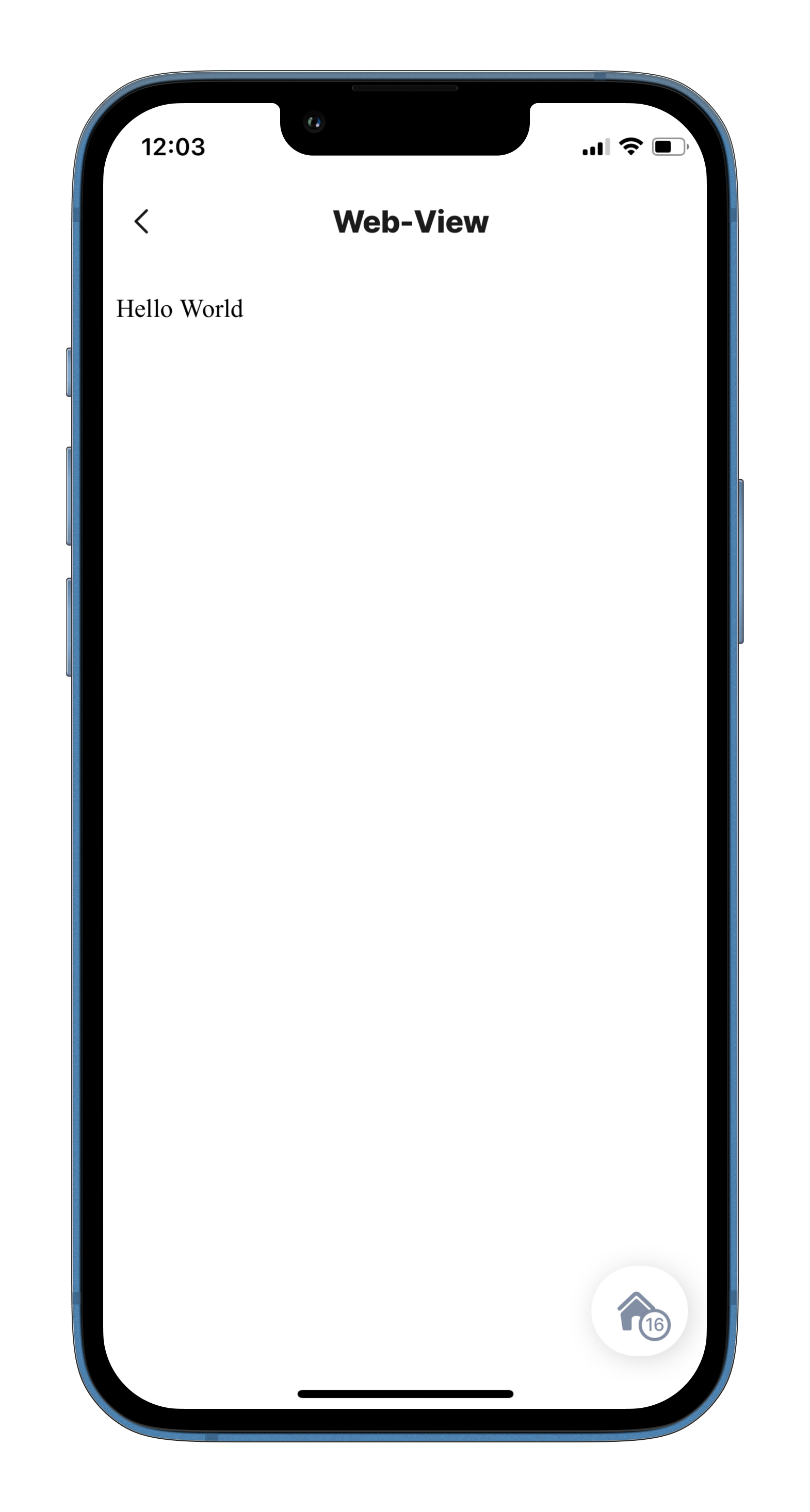
Web-view with HTML content

Editable web-view
Add your notes here
# Configure an action to save the edited HTML to the database. actions: - children: - type: action.execute-entity options: title: Save notes provider: DATA_PROVIDER_DYNAMIC entity: default/jobs method: update goBack: stay data: id: =@ctx.datasources.work-notes.id job-notes: =@ctx.components.edit-notes.state.content # Confirm that the notes were saved successfully. onSuccess: type: action.info-modal options: modal: element: type: icon icon: check-2-alternate color: positive title: Notes added successfully buttonText: Exit ``` {% endtab %} {% tab title="datasource" %} ```yaml datasources: work-notes: type: datasource.sqlite options: isDocument: true provider: DATA_PROVIDER_DYNAMIC entities: - default/jobs query: SELECT id, '$.job-notes', '$.job-number' FROM [default/jobs] WHERE '$.job-number' =@jobNo queryParameters: jobNo: A1 ``` {% endtab %} {% endtabs %} --- # Agent Instructions This documentation is published with GitBook. GitBook is the documentation platform designed so that both humans and AI agents can read, navigate, and reason over technical content effectively. Learn more at gitbook.com. ## Querying This Documentation If you need additional information that is not directly available in this page, you can query the documentation by asking a question. Perform an HTTP GET request on the following URL with the `ask` and `goal` query parameters: ``` GET https://docs.jigx.com/examples/readme/components/web-view.md?ask=